Managing projects
Accessing the Open project window
You can access project files through the Open project window. To view the manage projects window, select Open from the menu in the Analytical Client.
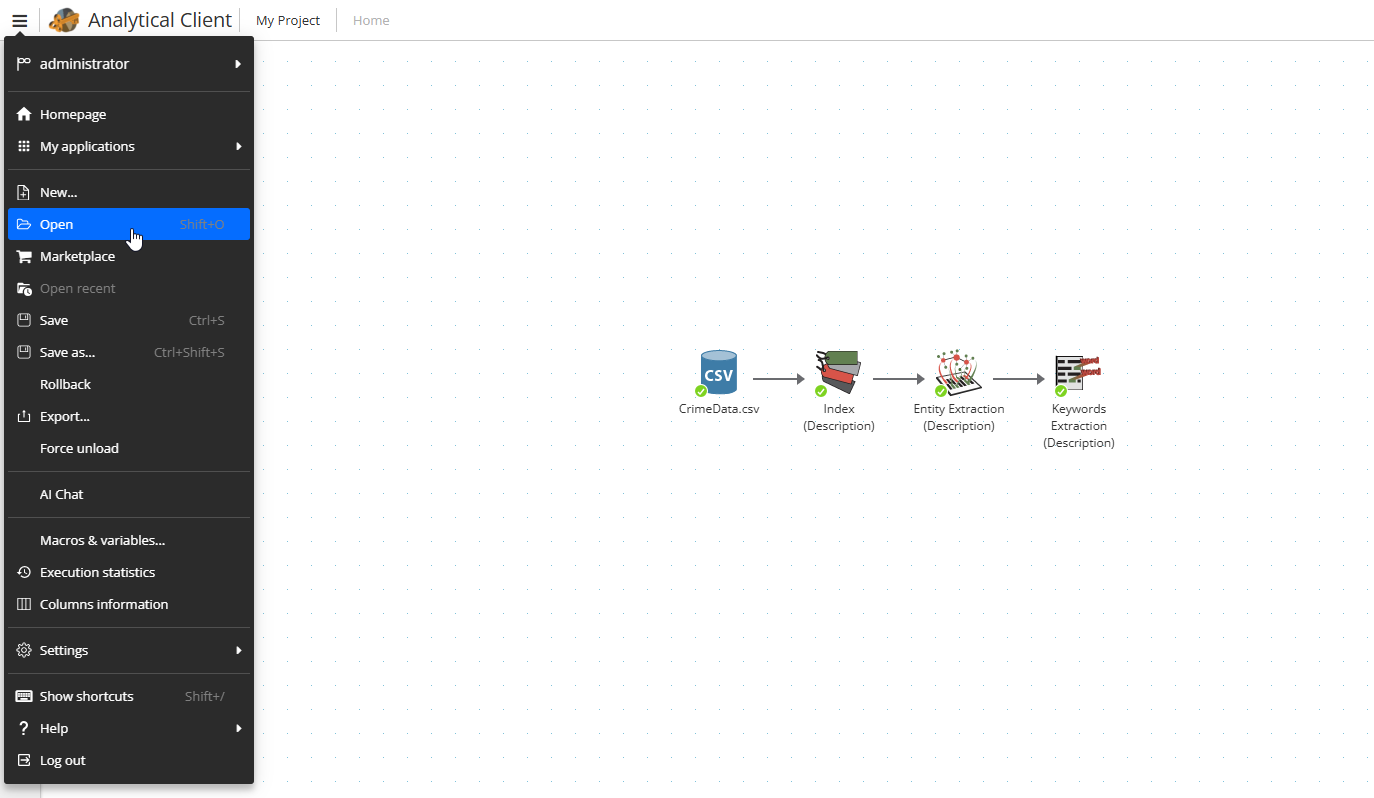
The Open project window looks as follows:
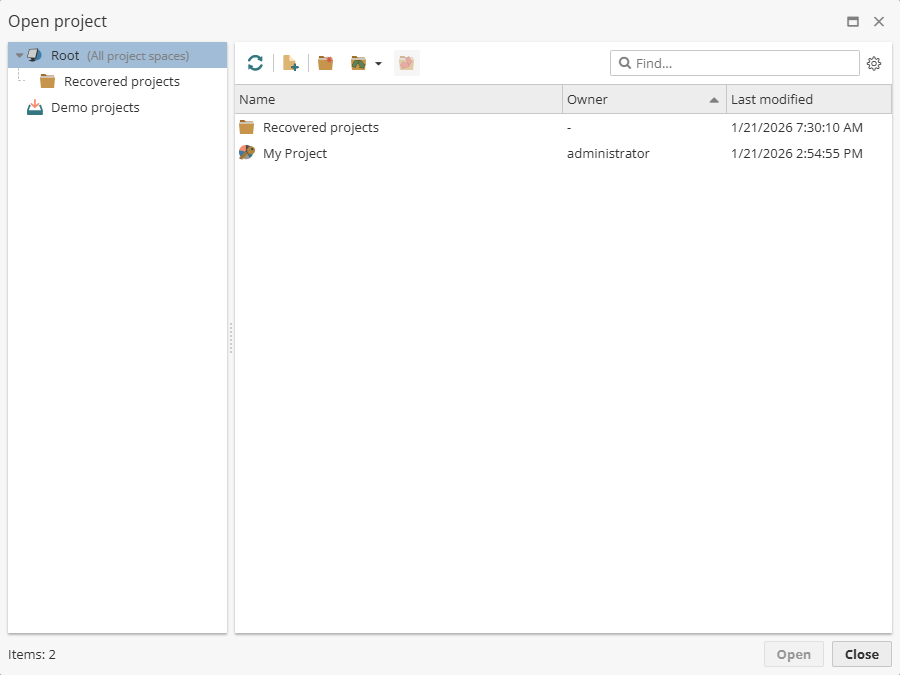
The area on the left displays folders that are used to reflect the logical organization of the projects. On the right there is a table of projects for the currently selected folder. Above the table of projects there is a toolbar that introduces additional options for the management of projects.
Right-click on an empty space within the table area to access the following options:
-
Manage columns… – enables you to toggle additional columns with the relevant information on the projects.
-
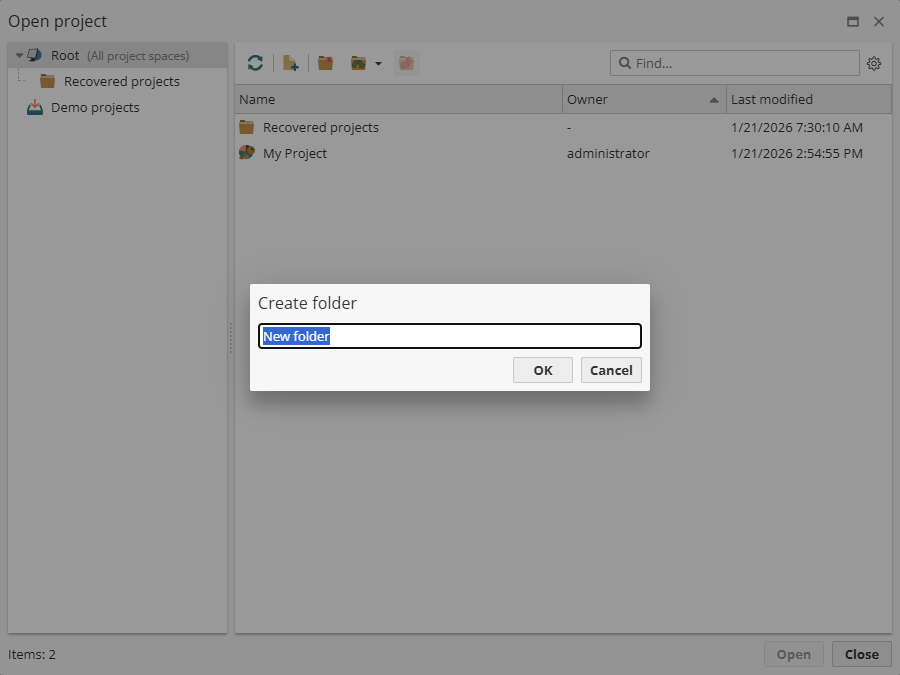
New folder – enables you to create a new project folder.
-
New project – enables you to create a new project.
-
Import – enables you to import a project.
Manage columns window
The Manage columns window looks as follows:
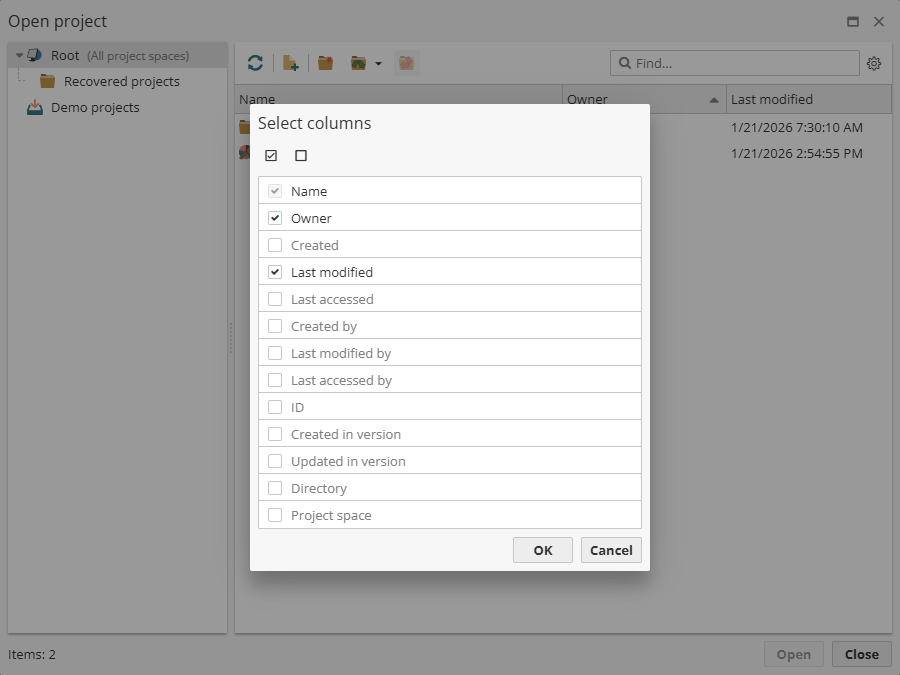
To add a column, tick the corresponding checkbox.
Creating a new folder
Right-click an empty space to create a new folder. Then enter a folder name.
Right-click a new folder to edit the created folder.
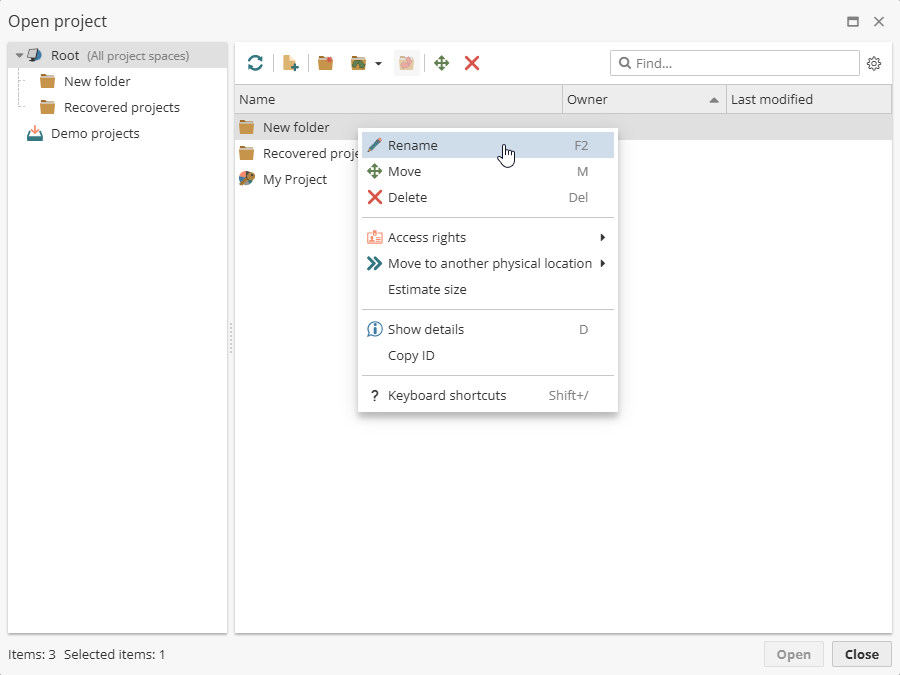
There are following options available, i.e.
-
Rename – renames a folder.
-
Move – moves a folder within other folders or Root.
-
Delete – deletes a folder.
-
Access rights – allows to set different access rights for a folder.
-
Move to another physical location – moves a folder to a different physical storage.
-
Estimate size – shows the folder size.
-
Show details – shows a window with the folder history, e.g. its location, owner, etc.
-
Copy ID – copies the folder ID.
Creating a new project
Right-click an empty space to create a new project. Then enter a project name.
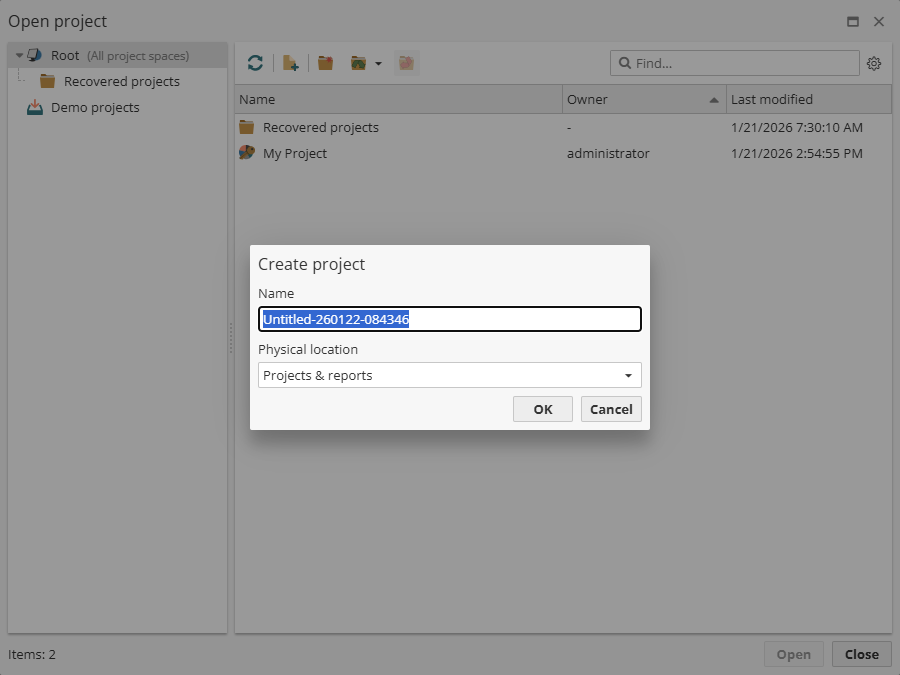
By default a project name contains a date and time of its creation.
One can also choose a physical location of the project, i.e. Archived projects & reports or Projects & reports.
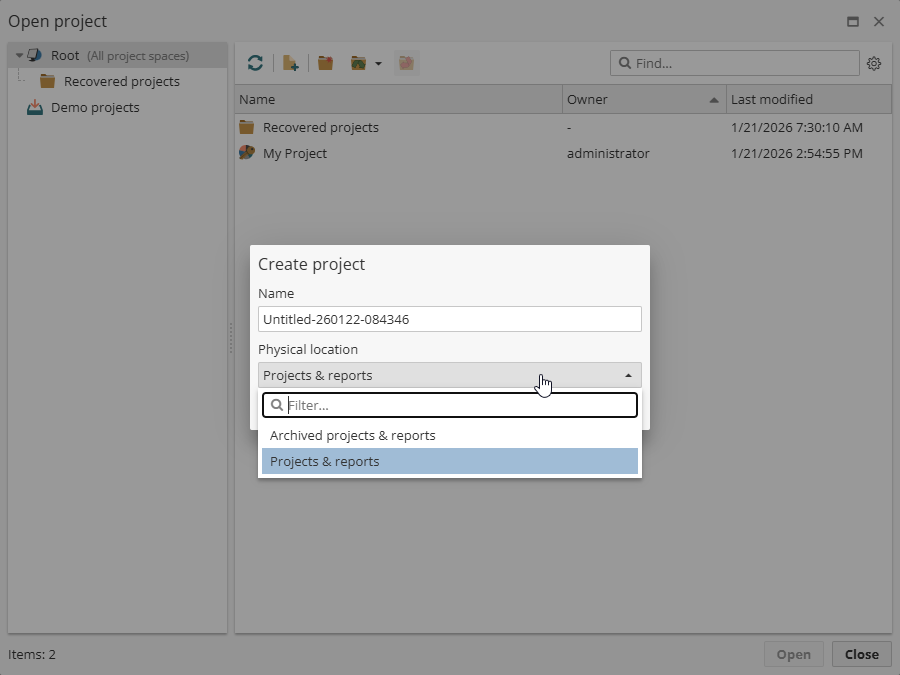
Note that only a server administrator can create new physical locations.
Importing a project
Right-click an empty space to import a project.
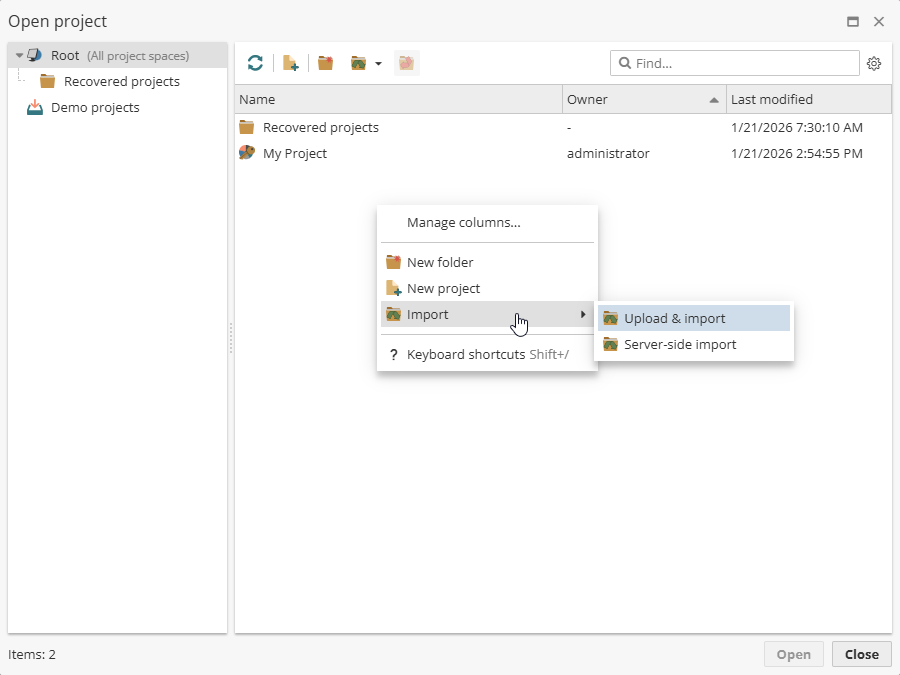
See here for more information on project import.
Refreshing the Open project window
To ensure that you are viewing the most up-to-date list of projects on the Open project window, click the appropriate button on the toolbar.
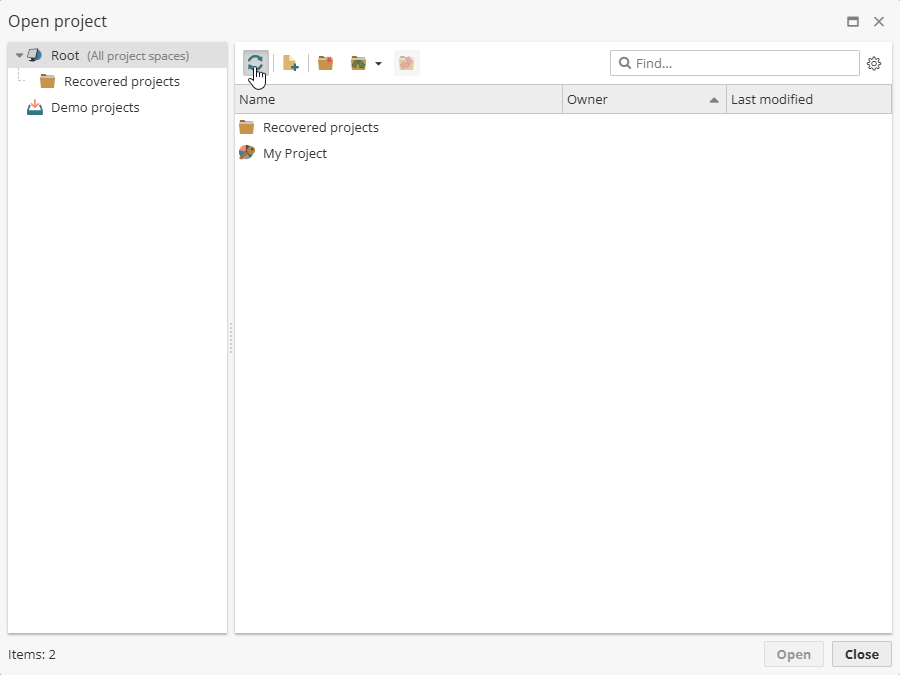
This can be helpful when other users are working with the same server simultaneously.
Sorting the list of projects for a folder
The projects window initially displays projects sorted alphabetically by name. To change the order of presentation, click on the header of the column by which you wish to sort.
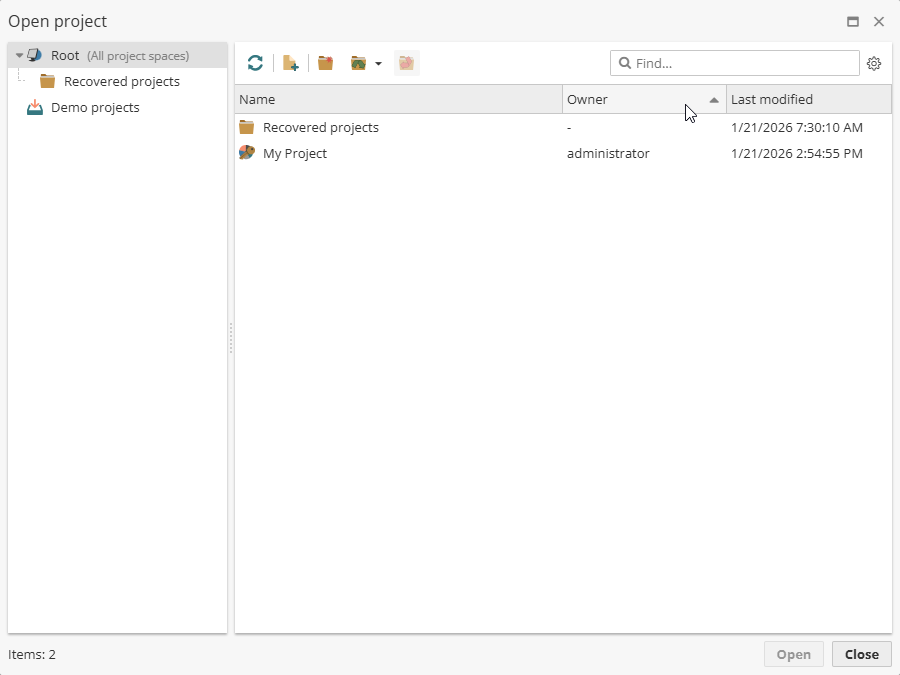
The appearing arrows indicate the sorting order, i.e. ascending or descending. When no arrow is shown, the original sorting order is restored.
Searching for projects
If you are having trouble finding a particular object in the list, use the search field in the upper-right corner of the window:
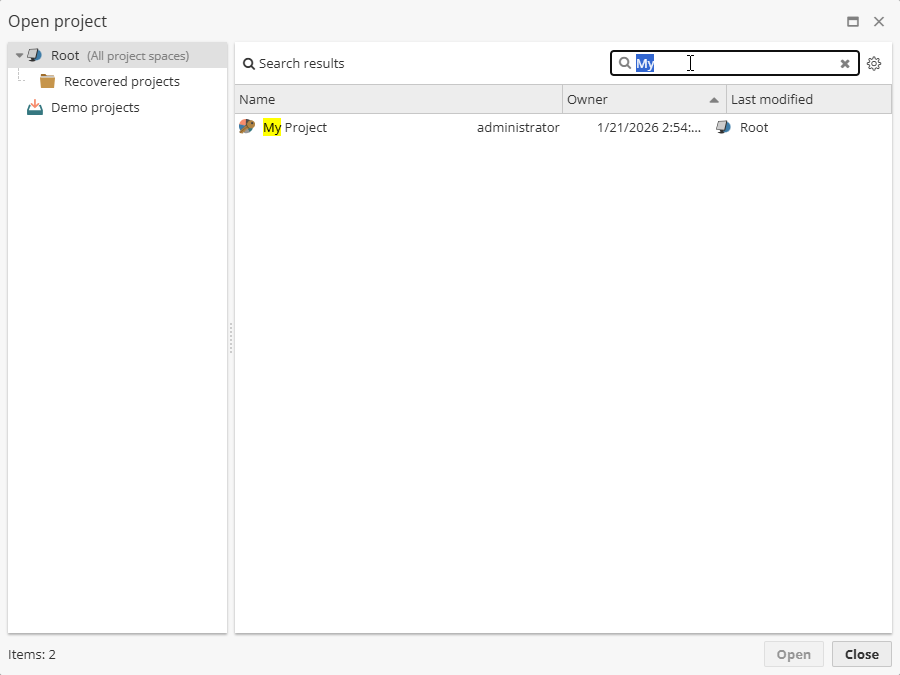
Enter any string value contained in the name of the project you are looking for. The list of projects will be automatically sorted to display only those projects that match the filtering condition.
Clear the search field to restore the full list of projects.
Project context menu options
Right-click on a project to see available options of the context menu:
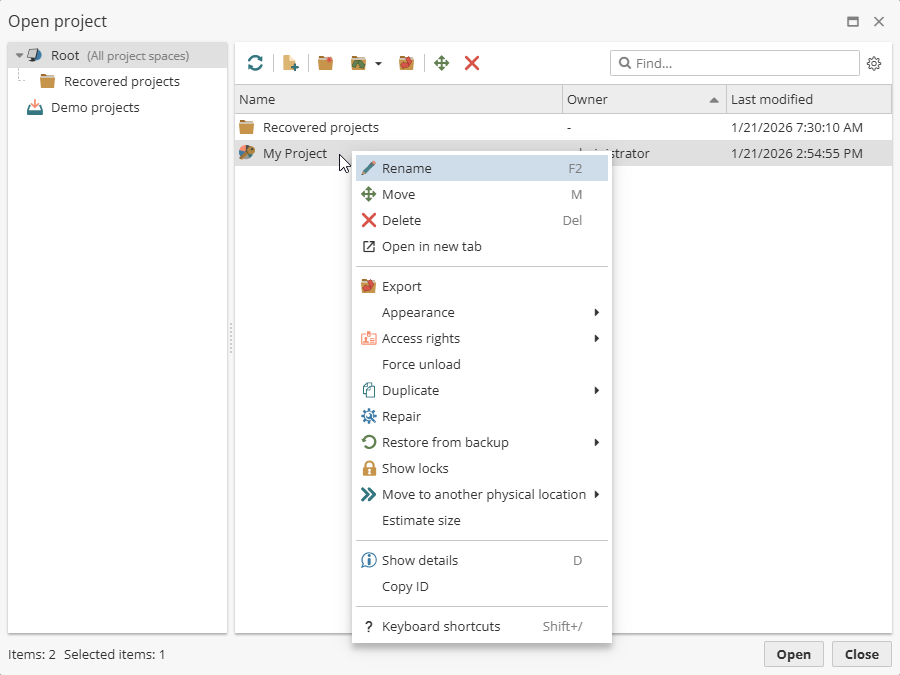
There are following options available:
-
Rename – enables you to rename a project.
-
Move – enables you to move a project from one folder to another. Remember that you can do it only to improve the logical organization of your projects, but their physical location does not change.
-
Delete – enables you to delete a project.
-
Open in new tab – opens a project in a new browser tab.
-
Export – enables you to export a project.
-
Appearance – allows to export/import project appearance settings.
-
Access rights – enables you to change the owner of a project or edit access rights.
-
Force unload – allows you to unload a project from the server in case the project execution has failed or there are any other issues which prevent common project unloading.
-
Duplicate – enables you to create an exact copy of a project and save it in the same folder. By default, a unique numerical suffix is added to the original project name. Click ОК to save the changes and close the window. By default, the project copy will be stored in the Projects & reports storage. If necessary, you can save it in the storage called Archived projects & reports.
-
Repair – enables you to forcibly unload a project. The flowchart and node configurations are preserved. The project will have to be re-executed.
-
Restore from backup – enables you to restore a damaged project using one of its available backup copies that are created every time a project is saved. This operation implies the use of an earlier version of the project. Due to version mismatch, the results of previous project execution can be lost, so you might have to re-execute the project.
-
Show locks – displays information on the current use of the selected project.
-
Move to another physical location – enables you to change the physical location of a project. Initially there are two possible project spaces available: Projects & reports and Archived projects and reports. A regular PolyAnalyst user can choose the physical location for a project when the project is created, or change the actual storage place any time later. Administrative users can create new project spaces, choosing the appropriate physical location on the server.
-
Estimate size – displays the size of a selected project.
-
Show details – enables users to view the general information on the selected project and edit its description.
-
Copy ID – enables you to copy a unique project ID to clipboard so that it can be used to work with API or when contacting Megaputer support.
The project context menu options are described with more detail in the Projects and reports section of the Administrative Tool guide.
Some of these options are also available for project folders.
Keyboard shortcuts
There are several keyboard shortcuts available on the Open project window.
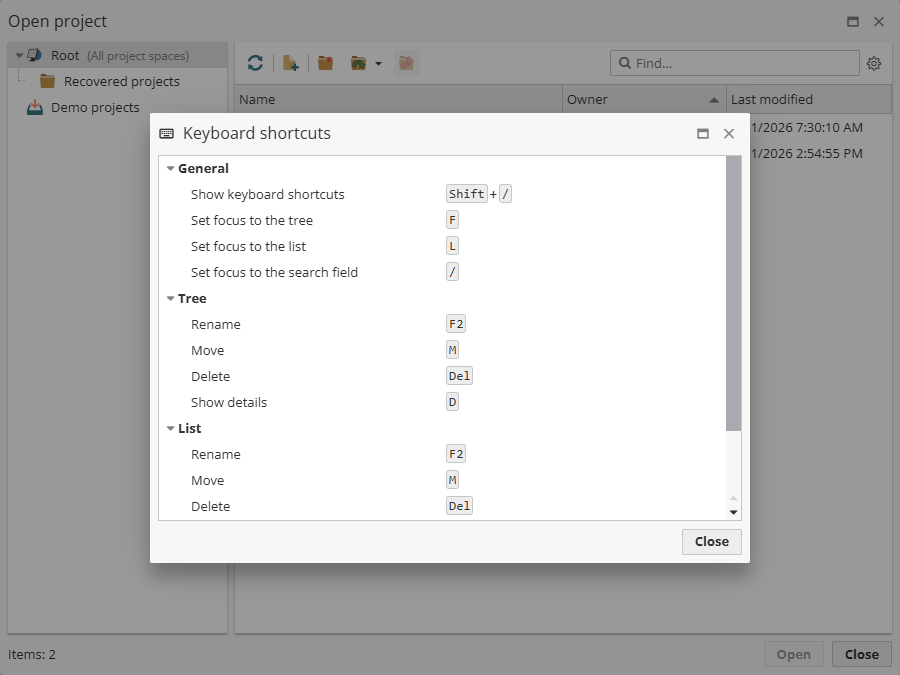
They are organized depending on the selected area into the following categories:
| General | Shortcut keys |
|---|---|
Show keyboard shortcuts |
|
Set focus to the tree |
|
Set focus to the list |
|
Set focus to the search field |
|
| Tree | |
|---|---|
Rename |
|
Move |
|
Delete |
|
Show details |
|
| List | |
|---|---|
Rename |
|
Move |
|
Delete |
|
Show details |
|
Go to parent folder |
|
Open |
|