Access rights for projects and folders
The project/folder owner has exclusive rights over the object. For example, he can grant/deny access to certain users in the Analytical Client, remove a project, hide the contents of individual nodes in a project, etc.
The Access rights option can be found in the context menu of both folders and projects and allows you to change the project/folder owner and edit access rights to them. Access rights can be configured for individual users and groups.
To customize access rights to the components of each project (e.g. hide the contents of nodes), use the Project settings… option in the context menu of the selected project. More details about this option are described below in the Changing project access rights subsection.
Changing project and folder owner
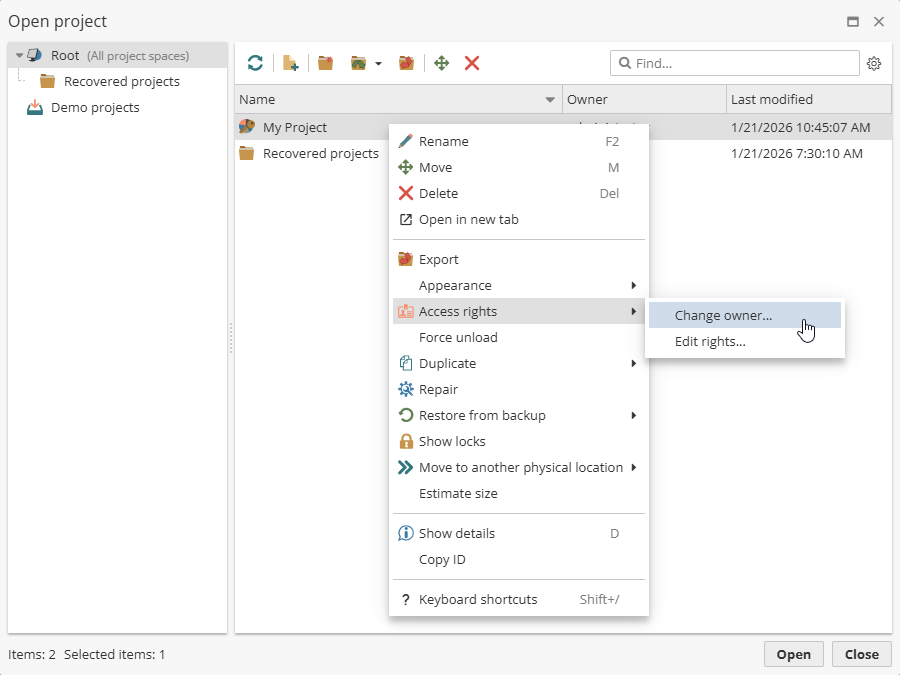
To change the object owner, right-click the project/folder for which you intend to change the owner.
| A project/folder owner can only assign a new owner to folders or projects that he owns. |
Then click the Access rights option and choose Change owner.
In the window that appears select the user you want to own the object.
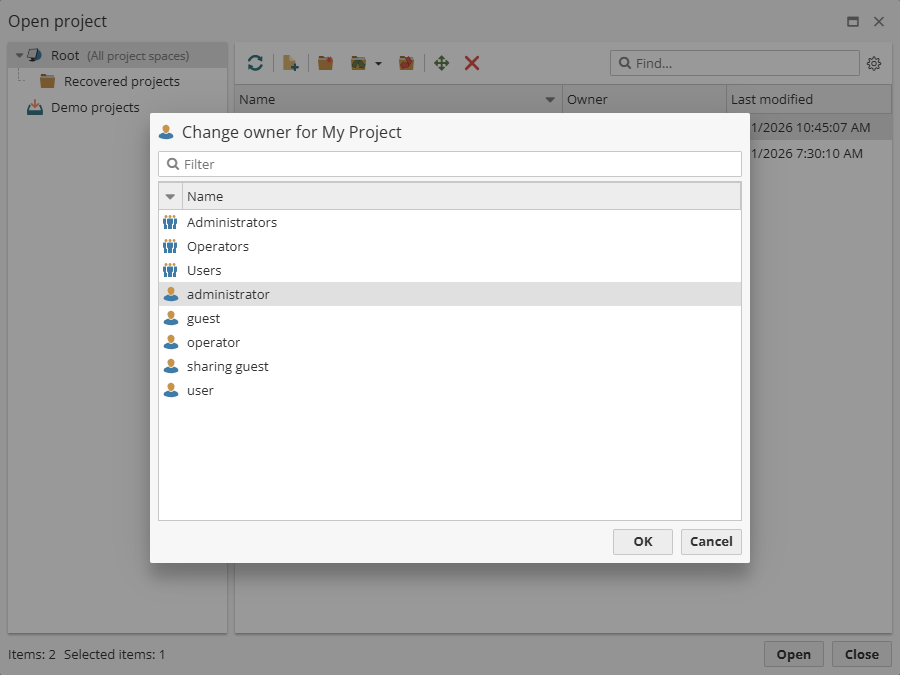
Check Apply to all subfolders (when working with folders). Click ОК to save the changes and close the window.
Changing folder access rights
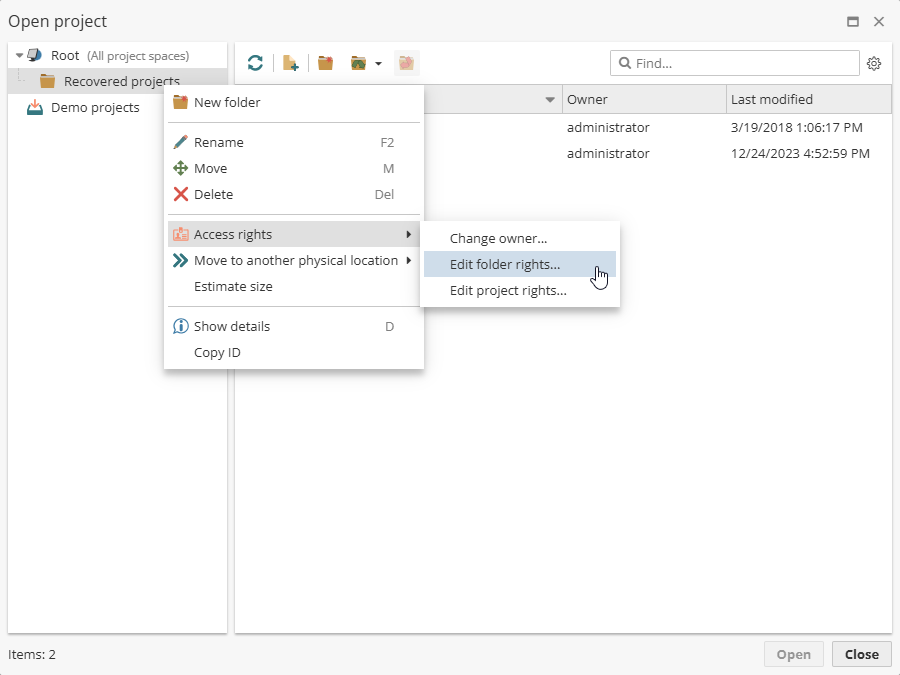
To change folder access rights, right-click the folder for which you intend to change the access rights.
Then click the Access rights option and choose Edit folder rights.
In the window that appears, select the users whose permissions you want to edit
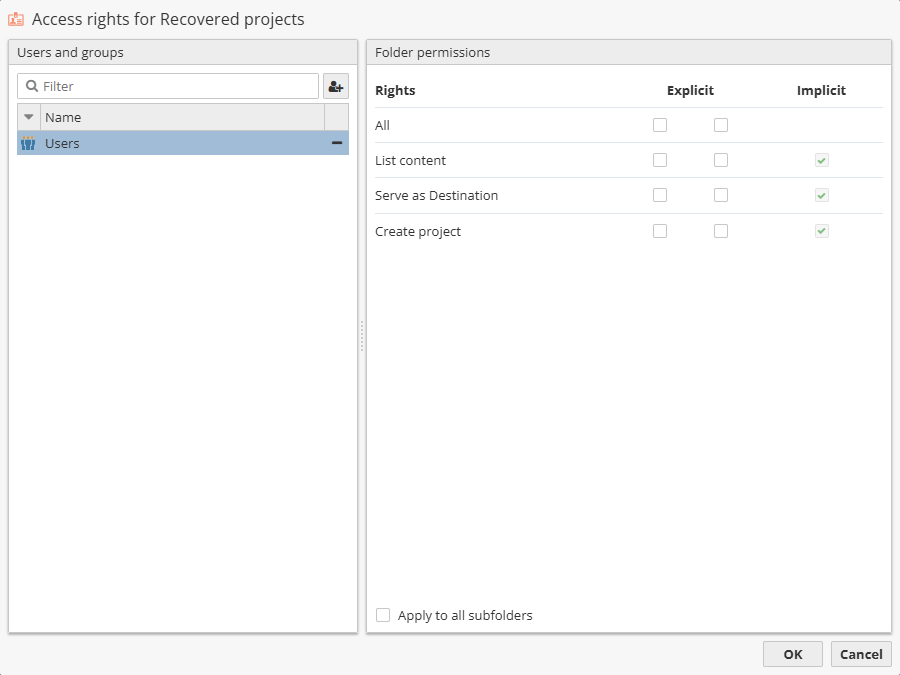
Check those permissions you want to grant or deny explicitly. By default, all permissions are implicitly granted. Check the option Apply to all subfolders, if needed.
| If a folder is empty, it is not possible to change projects access rights. |
Click ОК to save the changes and close the window.
Changing project access rights
To change projects access rights, right-click the project for which you intend to change the access rights. Then click the Access rights option and choose Edit rights.
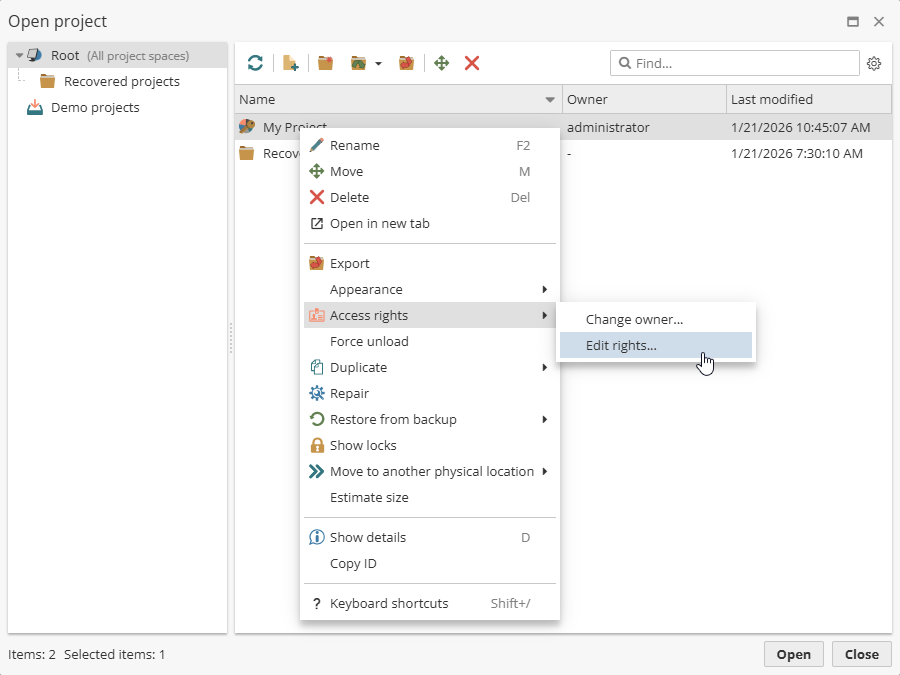
In the window that appears, select the users whose permissions you want to edit:
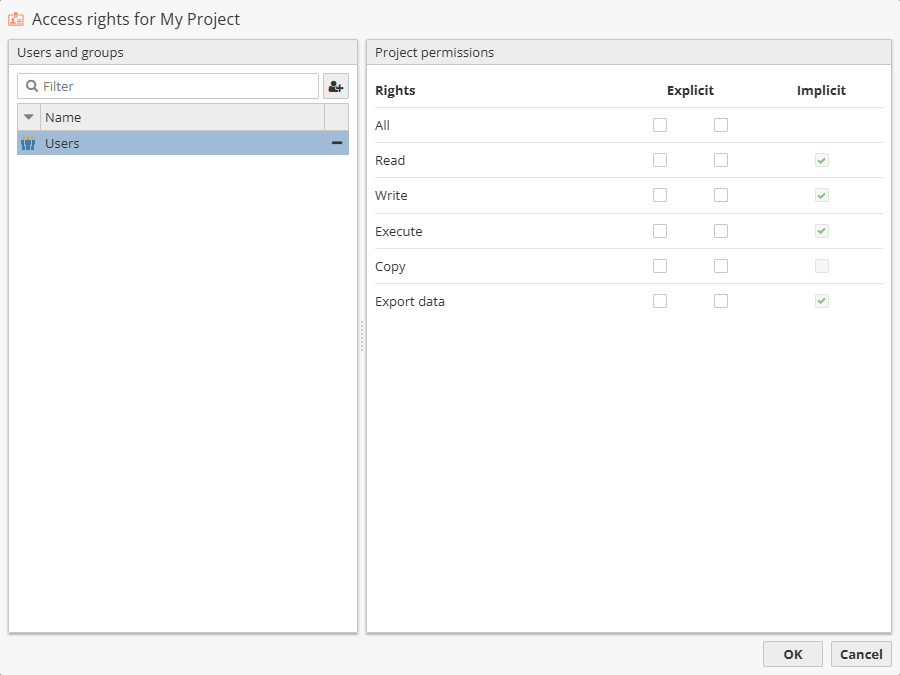
Check those permissions you want to grant or deny explicitly. Click ОК to save the changes and close the window.
Configuring nodes access rights in projects
Administrators and owners of the project can configure the visibility of certain nodes and even dataset columns in the project. The term visibility is used here to refer to the permission to read node and column data.
Generally administrators and owners of the project have maximum rights, and the corresponding rights checks are not performed as long as the project owner (or the administrator) remains the only user of the project.
Access rights can be configured both for particular users and user groups.
| Note that it boils down only to limiting node and column data visibility, while other manipulations with nodes are still available to users. If a user who is denied access to a certain column in the data source executes the entire project, all the downstream nodes and columns based on (or derived from) this column will be empty (filled with N/A values). In this case it is up to the owner of the project to decide, whether to deny certain users the right to modify and execute the project, or come to agreement with them that they will not modify the shared nodes. |
To manage access rights:
-
Open the project in the Analytical Client.
-
Right-click the flowchart and select Project settings… in the context menu.
-
Select User access rights in the field on the right:
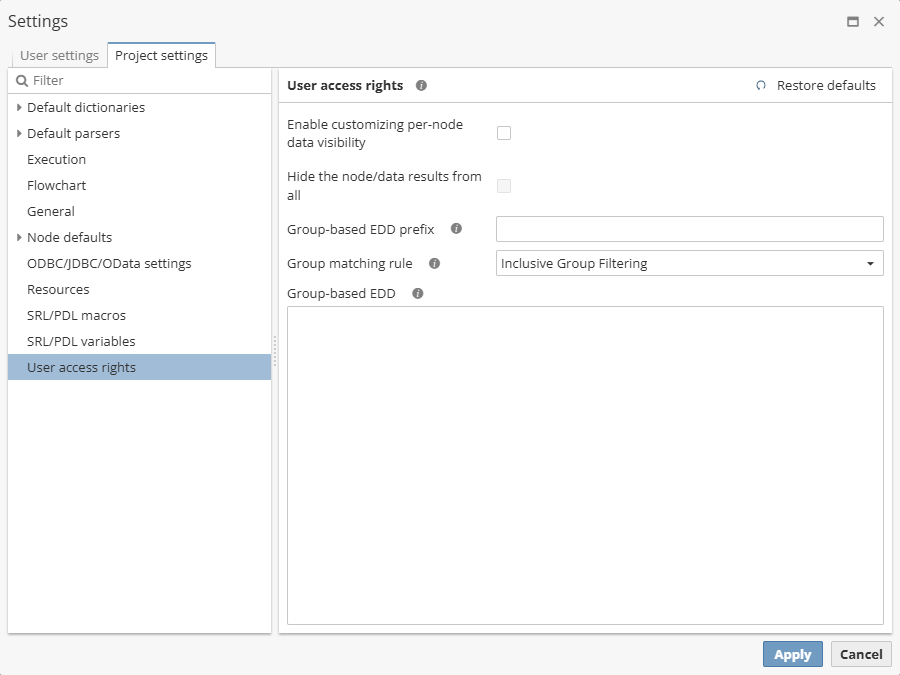
The first two options of the User access rights section primarily affect nodes in the project:
-
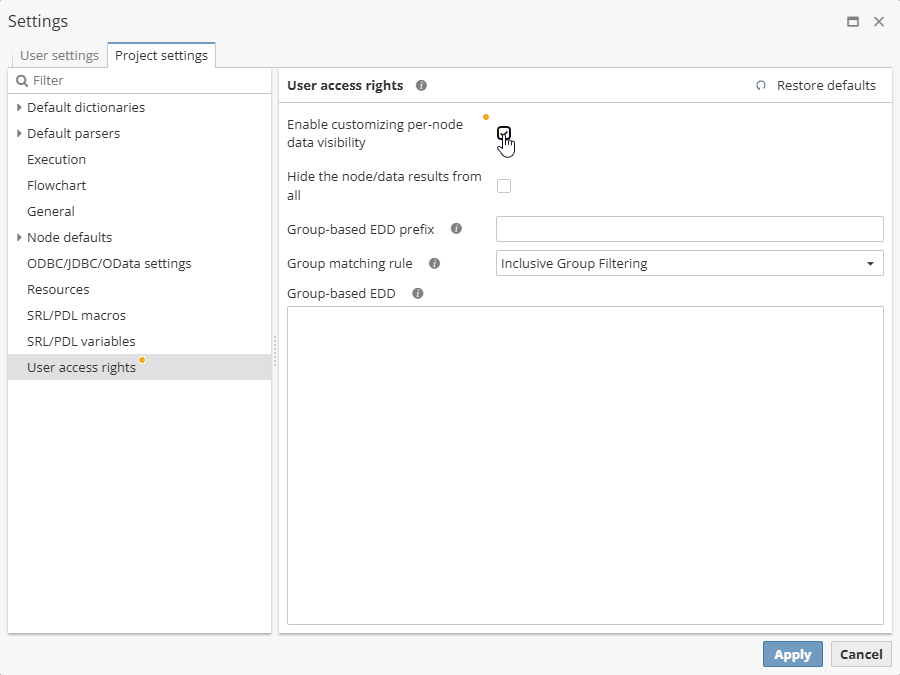
Enable customizing per-node data visibility – when checked, allows to configure access rights for particular nodes by selecting Edit rights… in the context menu. By default, regular users can view all nodes and column data in the project unless otherwise is explicitly specified.
-
Hide the node/data results from all – when enabled, prevents regular users from seeing any node results unless otherwise is explicitly specified. This option can be configured only if Enable customizing per-node data visibility is checked.
| Configured access rights are also implicitly inherited by components of web reports that are based on the corresponding parent nodes. If a user or a user group is denied access to certain nodes or dataset columns, such data will be unavailable for them in the associated web report. |
The remaining options are related to web reports and allow to configure the display of specific data to different user groups in components that linked in the Enhanced drill-down mode.
-
Group-based EDD prefix – if any user group is specified in the Group-based EDD field, enter the prefix that identifies corresponding link:../03_Using_data_sources_to_import_data/07_column_types.html[Boolean] columns.
-
Group matching rule – specify the filter condition for dataset rows:
-
Inclusive group filtering – users will have the access to records that have the yes value in at least one auxiliary Boolean column that represents the group the respective users are part of, and have the no value in each of the remaining auxiliary Boolean columns.
-
Exclusive group matching – users will have the access to records that have the yes value in each auxiliary Boolean column that represents the group the respective users are part of, and have the no value in each of the remaining auxiliary Boolean columns.
-
Partial group inclusion – users will have the access to records that have the yes value in at least one auxiliary Boolean column that represents the group the respective users are part of, irrespective of values in other auxiliary Boolean columns.
-
-
Group-based EDD – create a list of user groups (one item per line) to be provided with different results when interacting with components linked in the Enhanced drill-down mode. Additional dataset modification is also required: the corresponding number of Boolean columns needs to be appended to the dataset with the indication whether the record is available (yes) or unavailable (no) for the particular user group. Names of these new columns must also contain a unified prefix that needs to be specified in the Group-based EDD prefix field.
To edit access rights for the particular node:
-
Make sure the Enable customizing per-node data visibility option is checked in the Project settings… dialog.
-
Right-click the required node on the flowchart and select Edit rights… and find the the Visibility rights dialog. In the Visibility rights dialog click the appropriate button to add a user or a user group to the list:
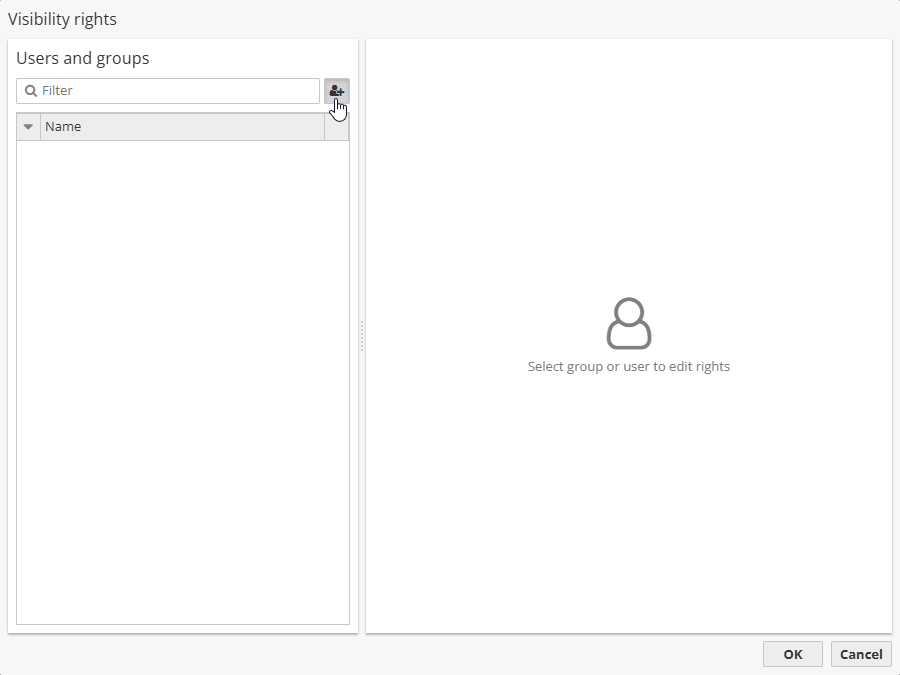
-
Then choose a user or a user group:
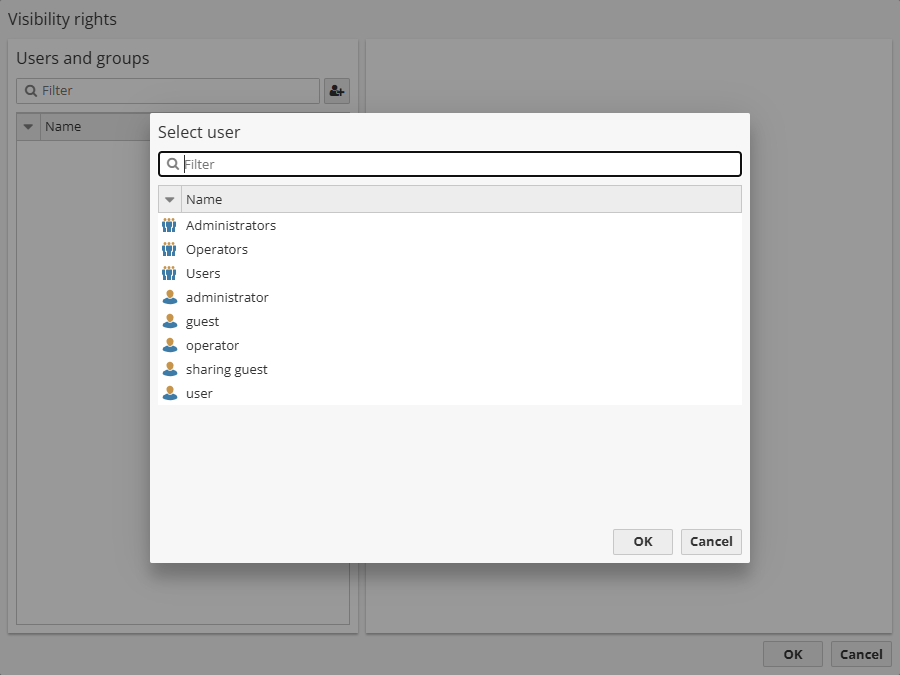
-
Once the required items are added to the list, select a user or a user group to configure access rights in the field on the right:
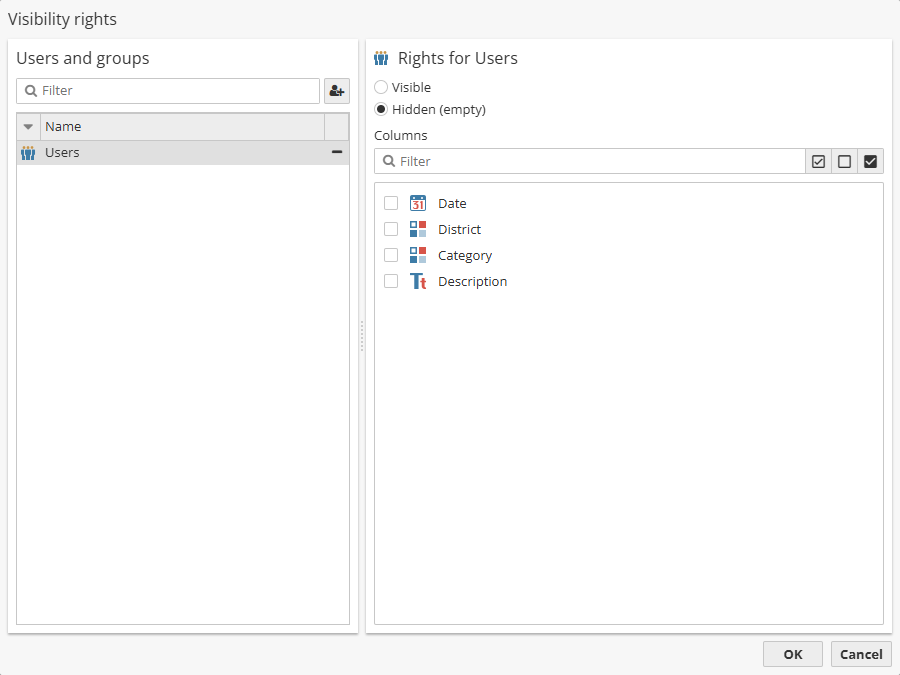
-
Specify the access mode by clicking the corresponding radio button, i.e. select Visible to grant a permission to view the contents, otherwise select Hidden to hide the data.
| For nodes that generate a dataset you can additionally specify columns that will be visible. Only contents of the checked columns will be displayed for the selected user or user group. |