Data appearance settings
Use the appearance button, to open the data appearance settings:
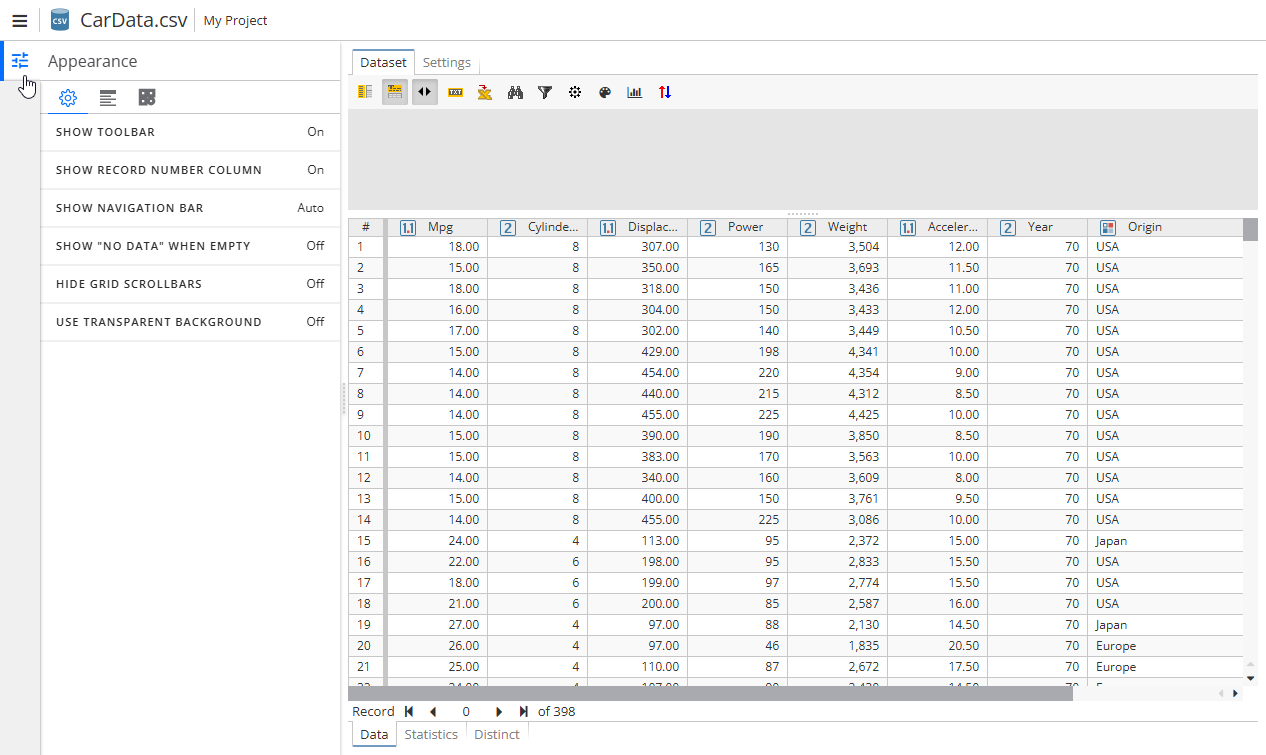
The appearance settings are given in 3 tabs, i.e.
-
Dislay options
-
Table options
-
Operations
Let’s discuss each one in detail.
Display options
The Display options tab is used to configure the table navigation settings.
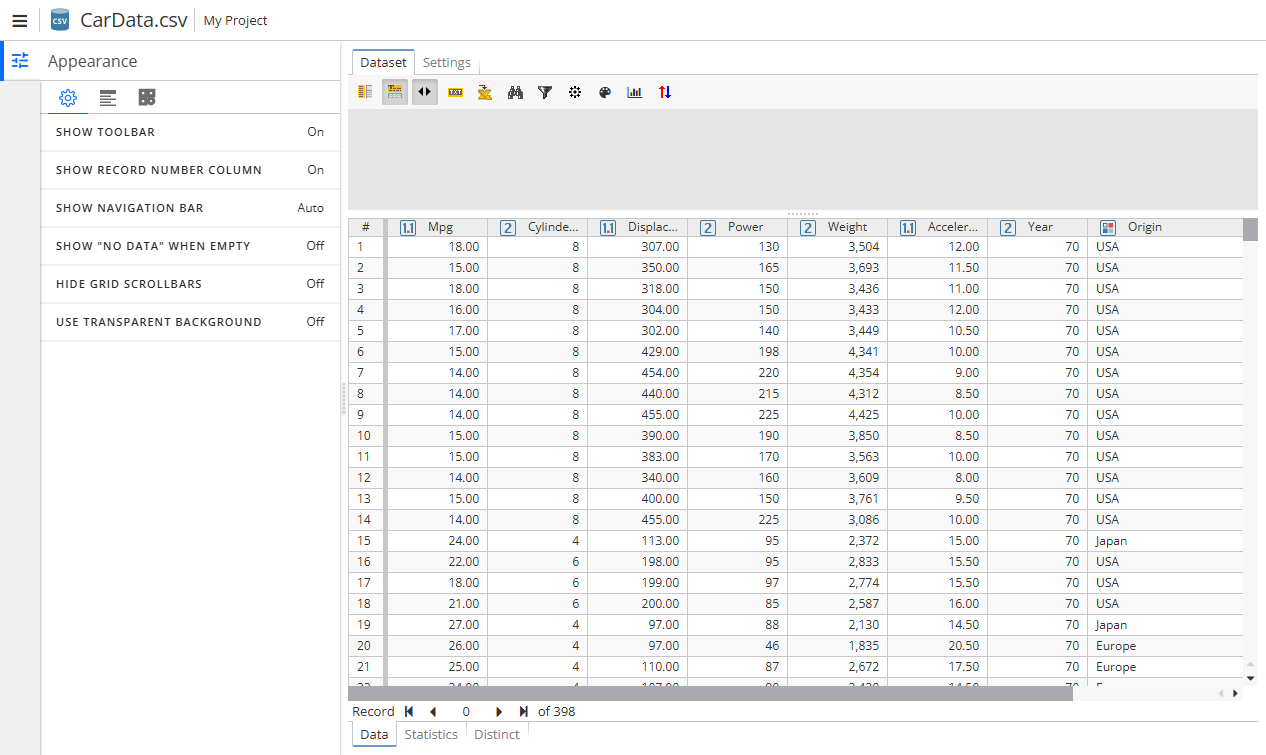
The tab options are as follows:
-
Show toolbar – turns on/off the toolbar.
-
Show record number column – turns on/off the column with the row number.
-
Show navigation bar – turns on/off the navigation bar, i.e. the row navigation pane.
-
Show "No data" when empty – turns on/off the No Data placeholder instead of an empty cell.
-
Hide grid scrollbars – turns on/off the horizontal and vertical scrollbars.
-
Use transparent background – turns on/off the transparent background for a column name (if no color is set) and/or the toolbar background.
Table options
The Table options tab is used to configure the column appearance settings.
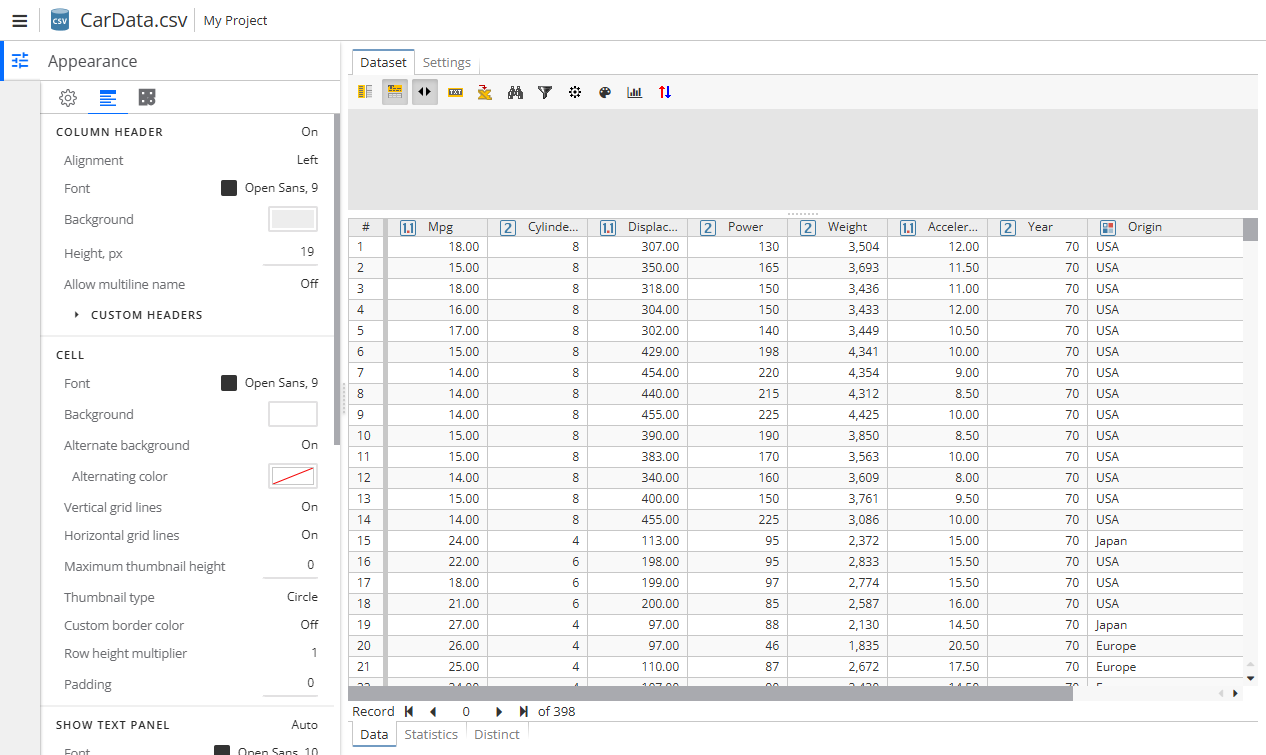
The tab options are as follows:
-
Column header – sets the column header appearance settings.
-
Cell – sets the cell appearance settings.
-
Show text panel – sets the text panel appearance settings (note that some settings may overlap the others).
-
Context panel – sets the number of charaters in the context panel.
-
Legend panel – sets the color of the legen items given in the legend.
-
Image panel – sets the image panel settings, i.e. the image fit.
Note that one can set different settings for different columns, e.g. set one color for one column and a different color for another. For this use the Custom headers field.
| One can set a fractional value for a column header height as well as for a row height, the Row height multiplier option allows to set a row height. |
Note that some options work only for the results of the Generic Dataset node used after some text analysis ones.
After the tab has been configured, it may look as follow:
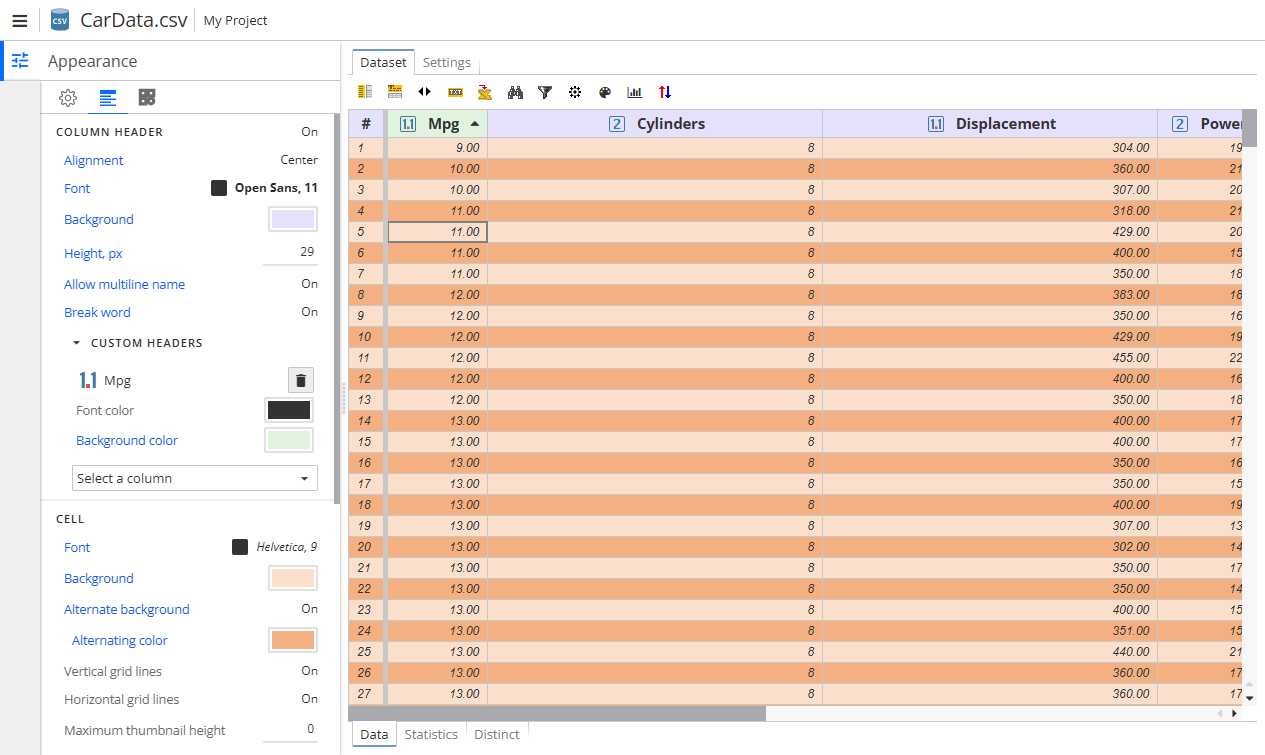
Click the settings given in blue color to set a default value.
Operations options
The Operations options tab is used to configure the table operation settings.
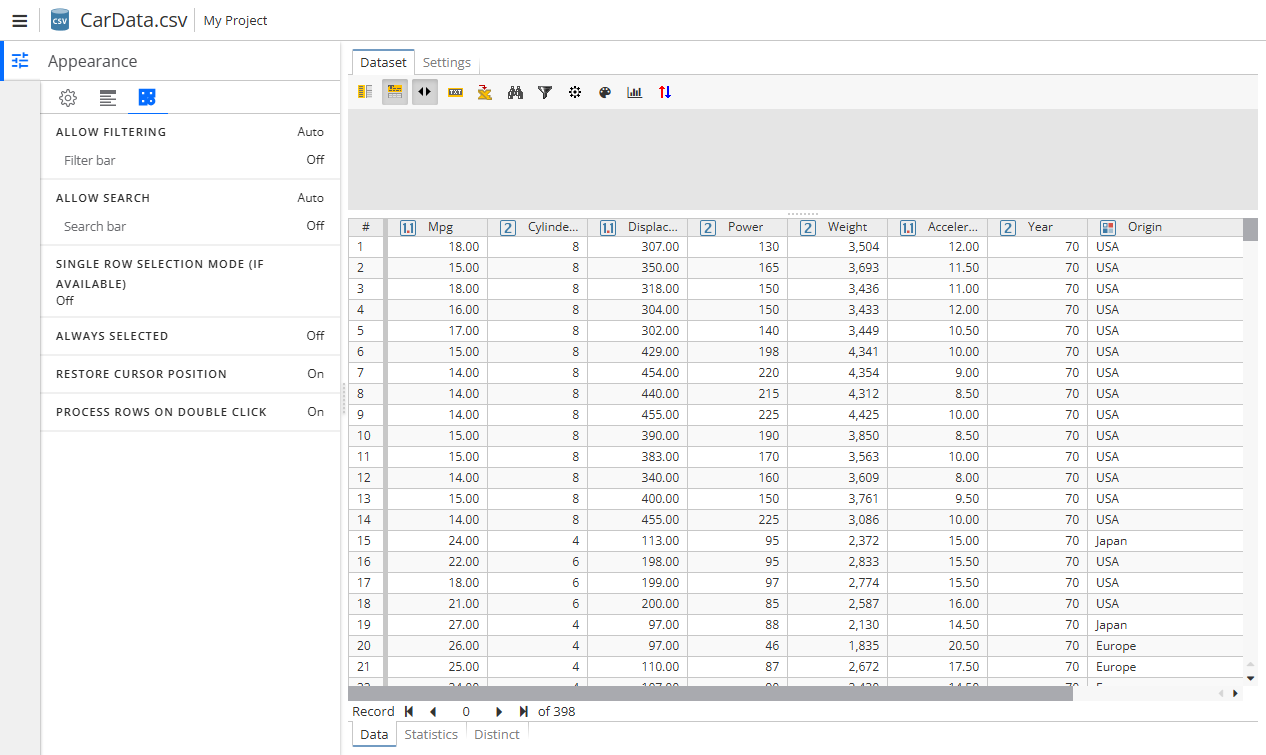
The tab options are as follows:
-
Allow filtering – turns off/on the filter bar.
-
Allow search – turns off/on the search bar.
-
Single row selection mode (if available) – turns off/on an ability to use a multuple select (i.e. with Shift or Ctrl keyboard buttons)
-
Always selected – turns off/on an option to always show a value in a text panel when clicking a table cell when viewing a web report publication (i.e. if disabled, then a text panel will be empty when opening such a table).
-
Restore cursor position – turns off/on the tabe auto-scrolling option after the table sorting.
-
Process rows on double click – turns off/on the data drill-down on a double click when viewing a web report publication.