Navigating and selecting records
To navigate records within the data grid, you can:
-
Scroll with the mouse wheel or the scrollbar, or
-
Use navigational keys such as Page up, Page down, Down arrow, Up arrow, or
-
Use the navigational toolbar located at the bottom of the data grid.
You may not see the navigational toolbar at the bottom because it may be hidden, or it may be disabled in the context of where you are viewing the data. The navigation bar can be hidden/shown by clicking the Toggle navigation bar  button in the data grid’s toolbar. The navigation toolbar looks like the following:
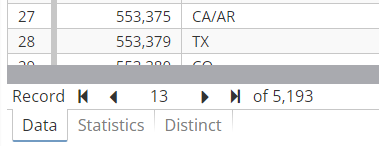
The arrow buttons in the navigation bar advance the focused cell to the first record, the previous record, the next record, or the last record in the dataset. The number in the center of the navigation bar displays the current record that is focused (starting from 1). You can also type in a record number and press the Enter key on your keyboard to navigate directly to that record (if it exists).
In order to efficiently display a large amount of data, PolyAnalyst loads data in batches. This is done dynamically, on demand, as you scroll through the records of a dataset. Each time you scroll, PolyAnalyst determines whether new records must be loaded. If so, then the records are requested by the client, at which point the server loads the records, and then transfers the records to the client, and then the client updates its view of the records. This occasionally requires several seconds to complete.
Focusing on values
To focus on a value, left-click on the value in the data grid. A small blue rectangle will appear around the border of the cell in the data viewer. This represents that the cell is now focused.
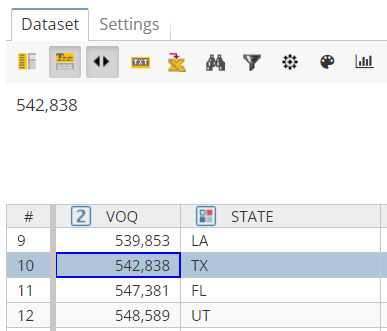
Anytime you first open a window that displays data in the data viewer, PolyAnalyst automatically sets the focus to the cell in the first column in the first row of the data.
Selecting records
-
to select a record, left-click on the record (in any column);
-
to deselect a record, left-click on any other record in the data grid
Alternatively, left-click on the selected record while holding down the CTRL key.
-
to select multiple records one at a time, hold down the CTRL key and left-click on additional records to include in the selection.
-
to select a range of records, click on the first record in the range and left-click on the last record in the range while holding down the SHIFT key.
You can add to or vary a selection by repeating step 2 on a different record.
Selecting columns
To select a column, left-click on the column’s name.
| Clicking a column’s name selects the column; it does not sort the column. If you want to sort a column, use the sort options available in the data grid’s toolbar, or use a Sort Rows node. |
To select more than one column:
-
click on additional column names while holding down the CTRL key to add those columns to the selection. Clicking on a column that is already selected while holding down CTRL will deselect the column;
-
to select a span (range) of columns, left-click while holding down the SHIFT key.