Restore a backup project
| Only project owners can restore projects from backup. |
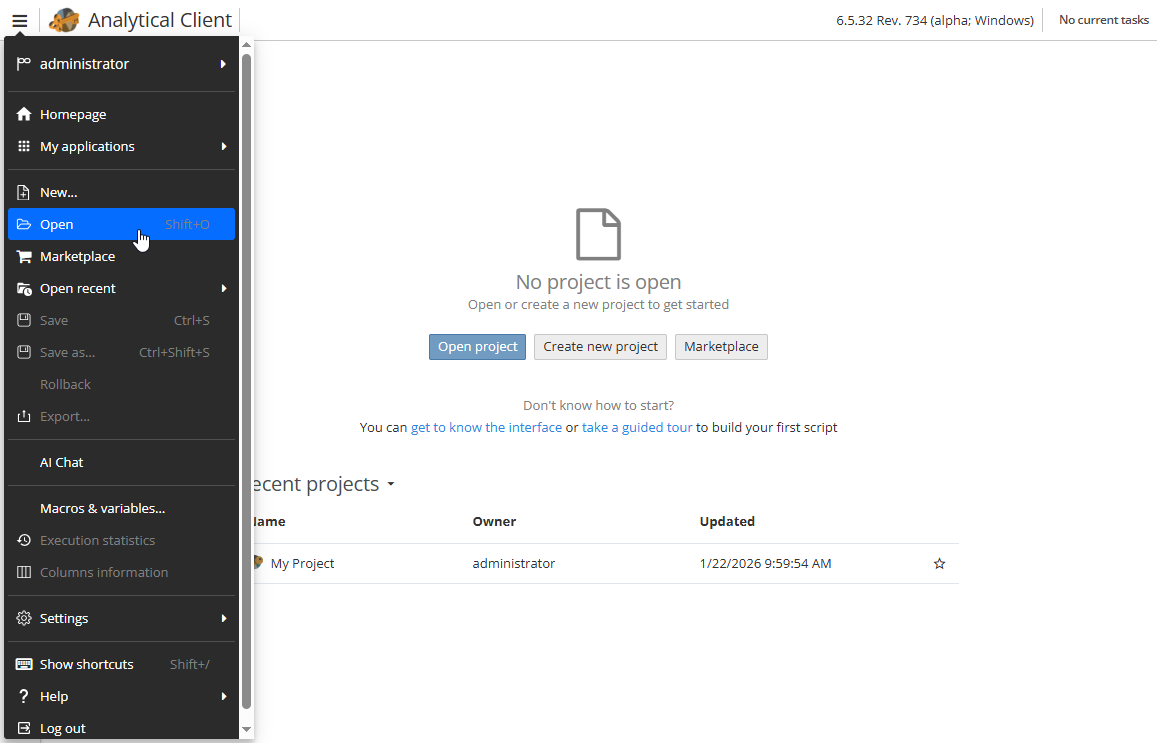
To restore a project from backup, click the Open option from the main menu of the Analitical Client.
Right-click a project and choose the Restore from backup option.
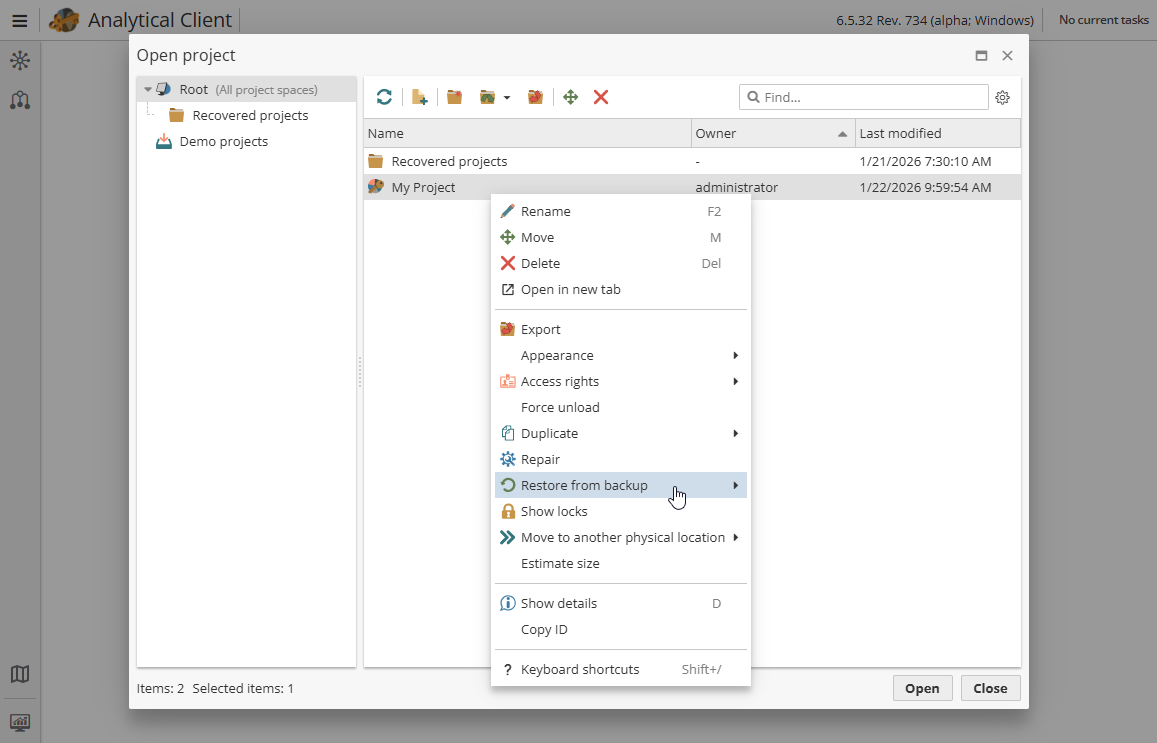
A new submenu appears showing available backup files. If no submenu appears or the submenu appears but is empty, then no backup is available.
| You can only restore an older version of an existing project. |
Select a backup file from the menu (left-click on the name of a backup). Backup files are named according to a date and time and with the file name extension ".bkp".
PolyAnalyst restores the project to its earlier version. You can now proceed to work with the older version of the project. The restored version becomes the newest version of the project. The version prior to backup is left as an older backup version.
| Restoration may take some time (a few seconds or minutes). You will need to wait for the backup to complete. No visual feedback is provided during this time. When the restore operation completes PolyAnalyst alerts you that the project has been restored. |
Users can take advantage of PolyAnalyst’s project export mechanism to create project backup files. PolyAnalyst projects can be exported as small XML files that only contain configuration information, or as large binary files that store data along with the XML files.
| If the precise state of the project is important, and the project contains nodes that do not necessarily recreate the same output after execution, you should consider exporting the projects into the large, binary PA6 format. If the project can be fully recreated just by re-executing the nodes, you should consider the XML file format because it is much more compact. |
When PolyAnalyst saves a project, it simultaneously creates a backup file which is a mirror image of the XML configuration file which stores the majority of information within a project. Backups are only created and only become available when a project is saved successfully.
| The configuration file only stores basic information about the project, such as the layout of nodes on the flowchart representing the project and the majority of the properties for each node in the project. The configuration file does not store project data. |
This means that restoration from the backup will not fully restore the project along with its data, only its configuration.
How to configure third-party software to backup PolyAnalyst projects
-
Open the Administrative Tool, and then open the Server settings window, select the Paths section, and examine the path being used to save a project.
-
Copy and paste the path to your 3rd party backup software.
-
Configure the 3rd party software to also backup subfolders if there is an option.