XPDL Syntax
XPDL consists of rules that describe language patterns and allow extraction of pattern elements. XPDL rules may be written in any text editor but it is recommended to use PA rules editor to gain highlighting, syntax checking, navigation, and other advantages.
This section describes the rule structure, explains the meaning of the rule elements and gives several examples.
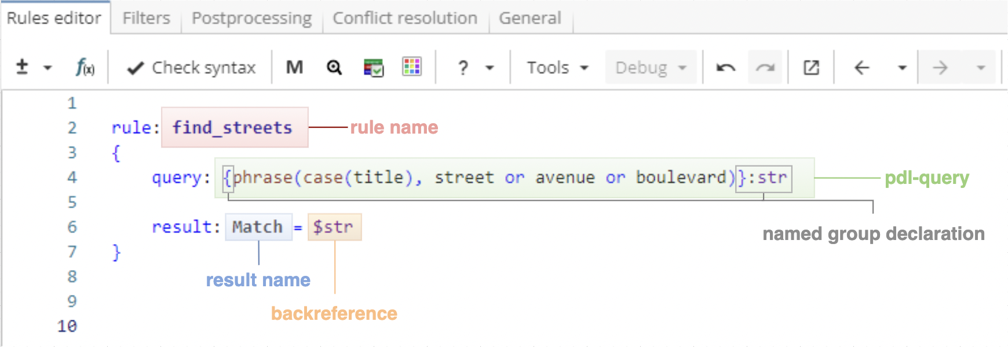
The first example in Figure 1 is a simple rule that matches street names.
Rule fragment
 rule: find_streets
 {
 	query: {phrase(case(title), street or avenue or boulevard)}:str

 result: Match = $str
 }
The rule starts with the trigger rule: followed by a rule name. The rule in Figure 1 is named "find_streets". Rule names should consist of alphanumerical or underscore characters (special characters and punctuation such as percent or at signs, dots, commas, spaces, brackets, etc. are not allowed in the rule names). Although rules can have arbitrary user-defined names, it is recommended to use meaningful names to facilitate error printing, search and navigation.
Rules can be consecutive, nested or both. Please see further sections for a detailed account of Rules hierarchy.
The body of the rule is enclosed in curly brackets. The body consists of a query and a result.
Query section is the core element of the rule and describes a pattern to be matched. The section starts with the trigger query: followed by a search query written in PDL language. For instance, a PDL query of the example rule matches phrases that consist of title-case words followed by words "street", "avenue" or "boulevard", e.g. "Columbia Street", "Sunset Boulevard", etc.
Note:
-
All PDL features except multiple columns search are supported in XPDL.
-
This document does not cover PDL language. If you are not familiar with PDL syntax and features, see section Introduction to PDL.
As shown in Figure 1, the query forms a named group. To declare a named group, a query should be enclosed in curly brackets followed by a colon and a user-defined label. A named group stores matched text under the name specified by its label. An expression matched by the named group can later be referenced via backreference $label. Named groups in XPDL are similar to capturing groups in regular expressions.
The text stored in the named group may be output as a rule result. In the example rule the whole query is stored in the named group "str", thus everything that the query matched goes into the output (e.g. "Columbia Street"). However, any element of the query can be stored as a named group. For instance, to output only street names (e.g. "Columbia") the query should look as follows

Rule fragment
query: phrase({case(title)}:str, street or avenue or boulevard)Named groups are essential for building rule hierarchies, which explained in greater detail in Rule Hierarchies section.
The result section follows the query section and describes rule output. This section defines which parts of the matched pattern should be the output and under which names. The section starts with the trigger result: followed by a user-defined result name, an equals sign and a reference to a named group. For example, the example rule outputs text matched by a query under a "Street" name. The result name listed after result: is used in the node report as the name of the column containing the results.
Figure 2 shows the result section output in the Entity Extraction node report:

The result section is optional and may be absent if the rule is not at the bottom of the rules hierarchy. A result may have optional attributes, i.e. result parts or properties associated with the result. Attributes should be listed after the result using the same syntax, but with the trigger attribute:. Result and attribute names may consist of several words (e.g. "Street name", "ZIP code").
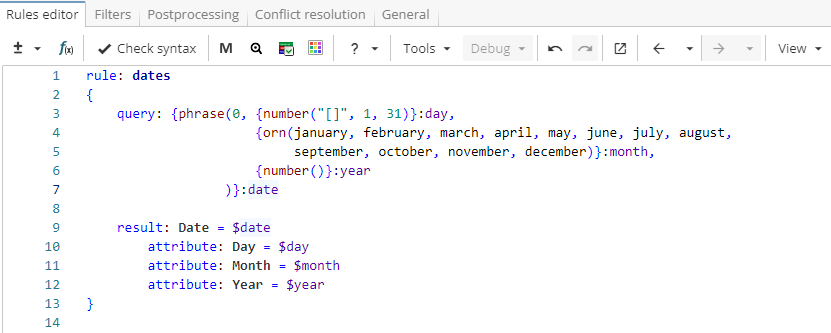
An example rule in Figure 3 looks for dates in the format "5 November 2017". When a match is found, the result section outputs it under the name "Date", while match elements also go into the output as attributes under corresponding names - "Day", "Month" and "Year".
Rule fragment
 rule: dates
 {
 	query: {phrase(0, {number("[]", 1, 31)}:day,
 {orn(january, february, march, april, may, june, july, august, september, october, november, december)}:month,
 {number()}:year
 )}:date

 result: Date = $date
 attribute: Day = $day
 attribute: Month = $month
 attribute: Year = $year
 }
Figure 4 shows the rule output in the Entity Extraction node report. Note that each attribute is displayed in separate column.

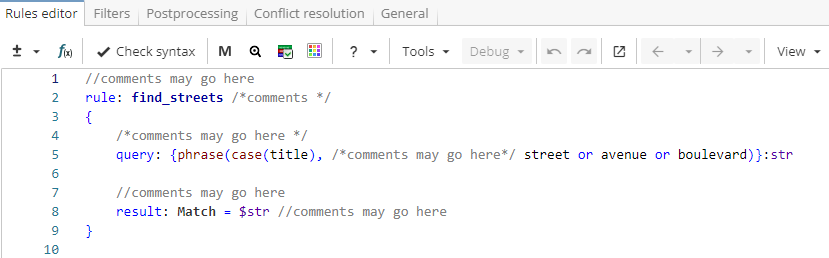
Both single- and multiline comments are supported in XPDL. To start a single-line comment, use //. All characters on the same line to the right of the // are ignored. If a comment is bordered by /* and */, it may be either single- or multiline. As shown in Figure 5, comments may be inserted before, after or in the middle of the rule: at any position where a space may be inserted.
Rule fragment
  //comments may go here
 rule: find_streets /*comments */
 {
 /*comments may go here */
 query: {phrase(case(title), /*comments may go here*/ street or avenue or boulevard)}:str

 //comments may go here
 result: Match = $str //comments may go here
 }
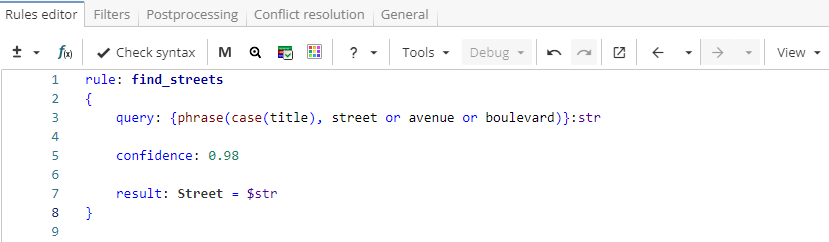
An XPDL rule may also contain an optional confidence section. The confidence section starts with the trigger confidence: followed by confidence value that is a number in the range [0; 1]. If present, confidence section should be located after query section and before result section.
Rule fragment
  rule: find_streets
 {
	query: {phrase(case(title), street or avenue or boulevard)}:str

 confidence: 0.98

 result: Street = $str
 }
If confidence value is not set, the default settings are applied. The default confidence value is 1 for the upper-level rules, while child rules inherit confidence from their parent rule. Note that confidence value is not statistically calculated but rather reflects the opinion of a rule’s developer on its ability to extract relevant results and indicates whether this rule will have priority over other rules if several rules match the same sequence (see Conflict Resolution section).
Confidence is shown in the node report and thus may be useful to sort extracted matches or filter out matches with the confidence value below or above a specified threshold.
