Managing project settings
Project settings overview
PolyAnalyst projects have a number of settings that allow you to manage node behavior, customize their appearance, configure dialogs and warning messages and so on.
Settings can be configured on the following three levels:
-
Default user settings – options of this section in the Administrative Tool enable administrators to configure settings that will be applied to new PolyAnalyst users and their projects by default.
-
User settings – options of this section enable users to configure default settings that will be applied to their future projects.
-
Project settings – options of this section enable users to modify settings for the current project.
Configuring user settings
If you find yourself making the same changes to project settings for each project you create, you should consider configuring user settings instead, so that each new project you create will be in according with the specified default settings.
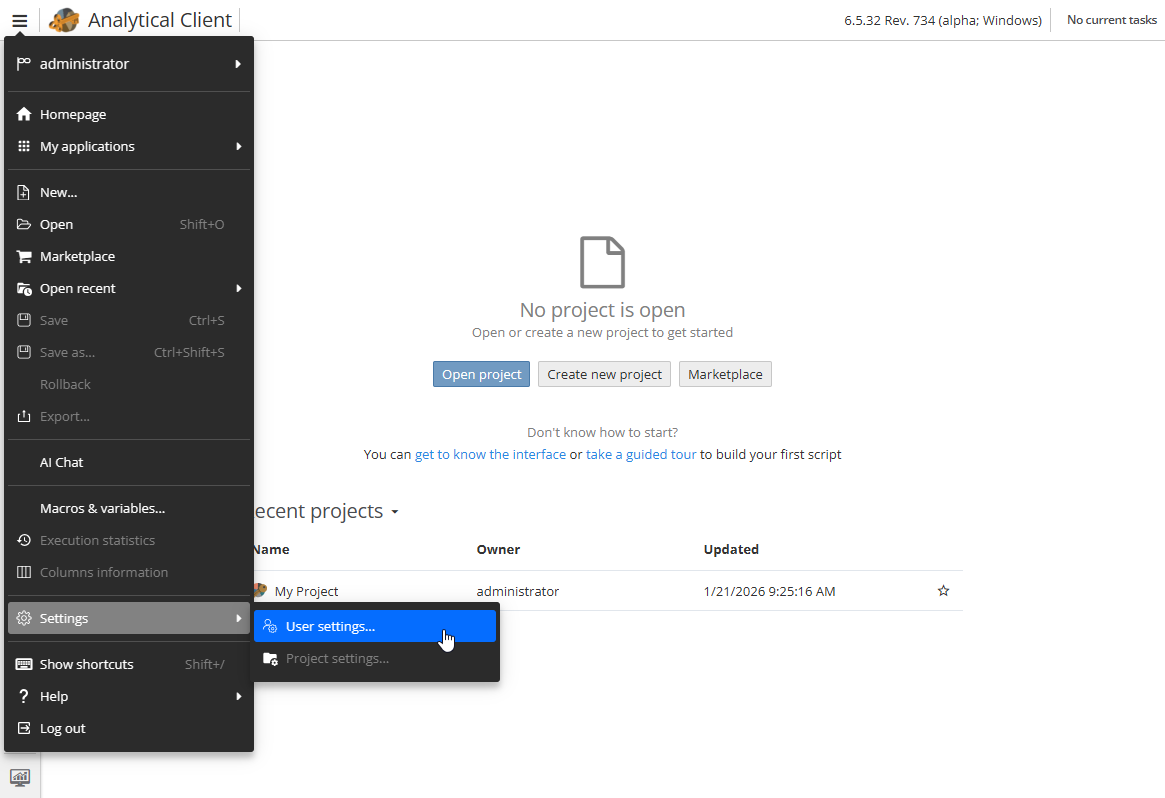
To access user settings, open the Analytical Client and navigate to the User settings… section of the menu:
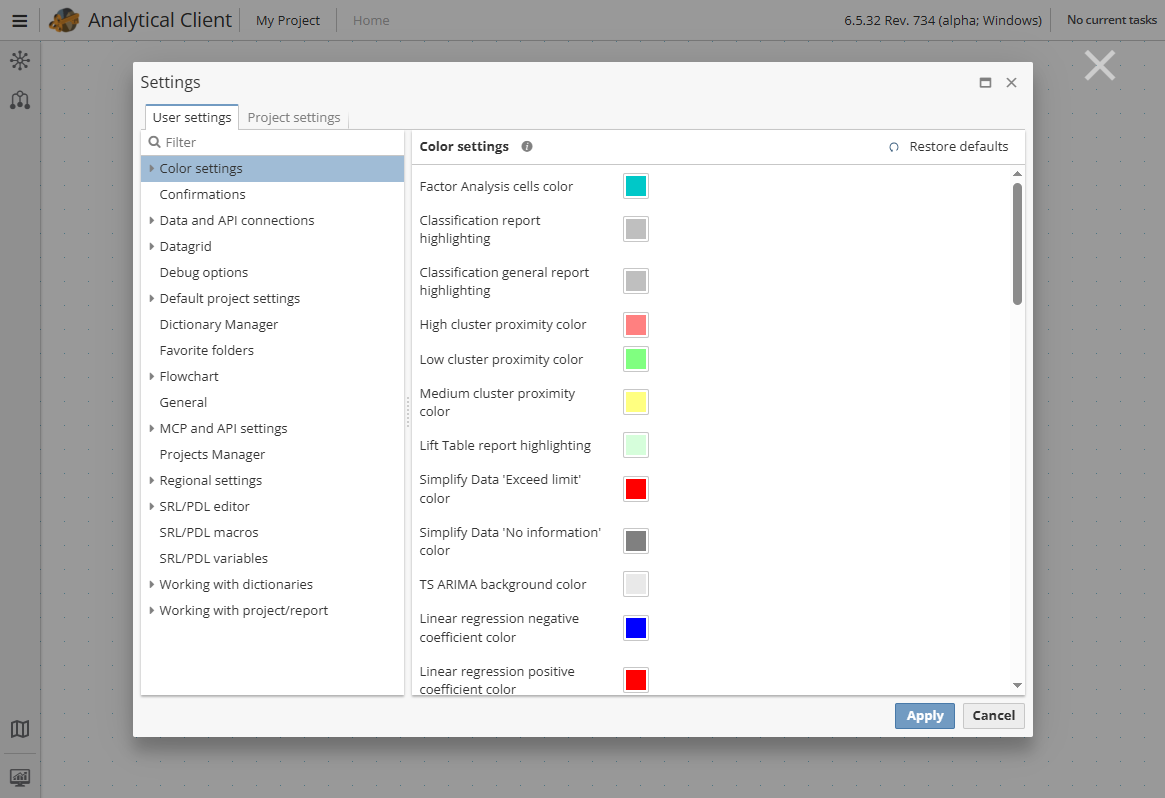
The corresponding dialog will be opened to the User settings tab:
To specify default settings for your future projects, expand the Default project settings section to display available groups of options:
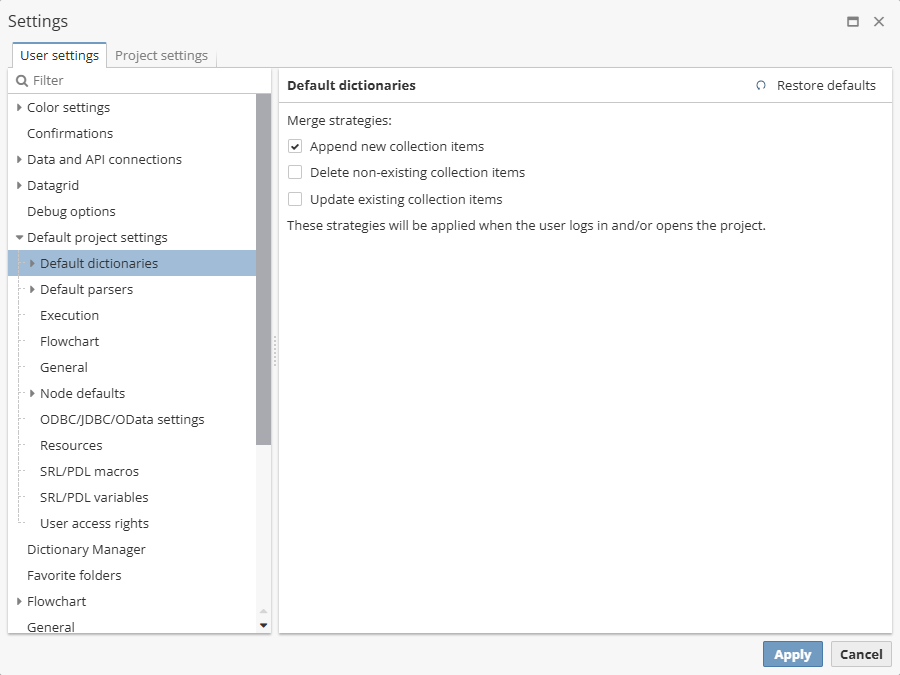
There are following options available:
-
Default dictionaries – allows to set merge strategies between project and server dictionaries.
-
Default parsers – certain nodes, such as the Index node and various data source nodes that may involve natural language related text processing, have configurable parsing options. Options of this group allow to configure how one or more nodes will parse a raw text into words and phrases and so forth, so that each node of your project that processes text will use a consistent set of parsing parameters. Available parser options are similar to those displayed in the Properties window of the Index node. See Configuring the Index node for details.
-
Execution – options of this group allow to configure the behavior of PolyAnalyst when specific events occur during the node execution, such as the detection of the first error or warning in the node sequence.
-
Flowchart – includes an option that allows you to lock annotations on the script (if the option is enabled, it is not possible to change the position, delete, or edit annotations).
-
General – includes miscellaneous options.
-
JDBC/ODBC/OData settings – allows to set ODBC/JDBC/OData timeout options.
-
Node defaults – options of this group allow to configure some of the general node properties.
-
Resources – includes options that control the overall performance of PolyAnalyst, e.g. once properly configured, they allow to mitigate significant memory consumption. The corresponding warning message will also be displayed in the project when the limit value is reached.
-
SRL/PDL macros – options of this group allow to set merge strategies between project and server PDL or SRL and PDL macros.
-
SRL/PDL variables – includes options that allow to set merge strategies between project and server SRL and PDL variables.
-
User access rights – includes options that allow to manage the visibility of particular project nodes and components for different user groups. See Configuring project visibility rights for details.
Configuring project settings
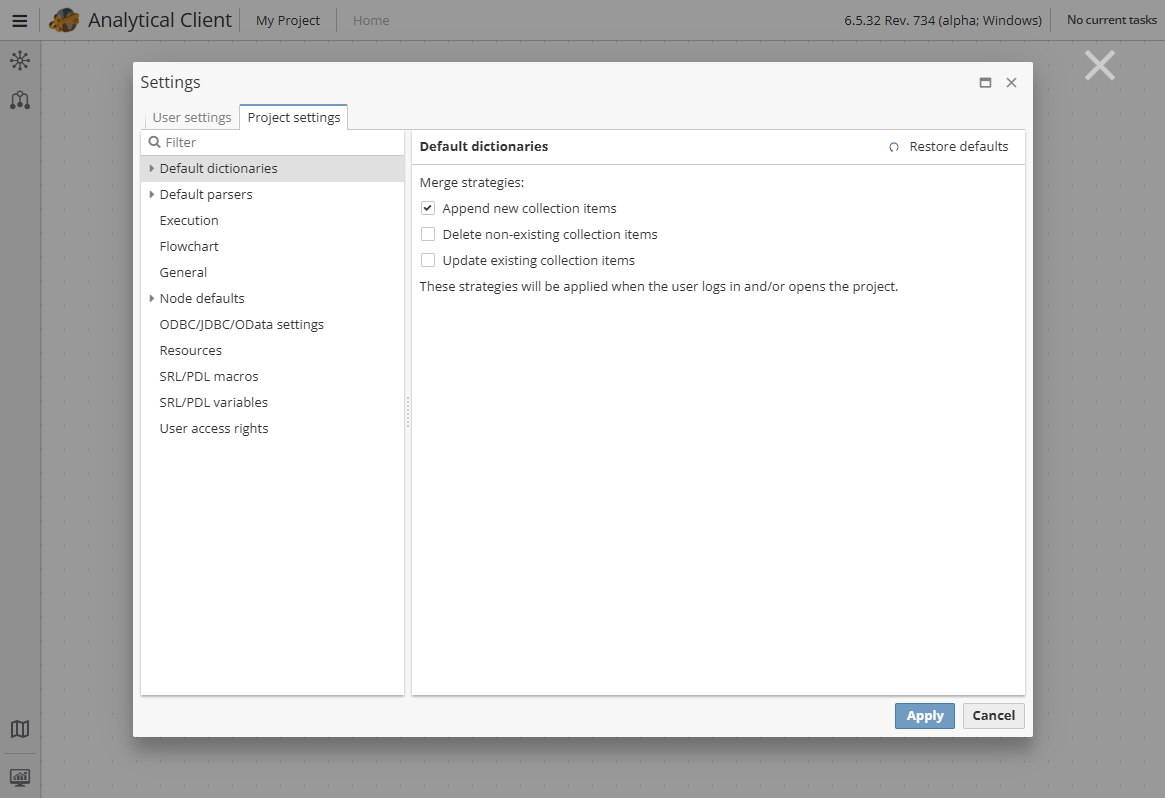
Project settings are similar to those available in the Default project settings section on the User settings tab but affect only the current project.
To access project settings, open the project in the Analytical Client and right-click the flowchart and select Project settings… in the context menu.