Exporting data
You can export data from PolyAnalyst using various methods:
-
When viewing the data in the data viewer, you can click one of the export buttons in the toolbar of the data viewer. There is an option to export the file to CSV, XLS, HTML, XML, XLSX or JSON.
-
You can export data using the Export to File or Export to ODBC nodes.
Choosing the best method for exporting data
The pros of exporting data when viewing data:
-
Exporting data when viewing data is a relatively quick and easy to configure option because you do not need to create, connect, and configure any nodes.
-
Exporting data when viewing data works entirely within the client.
-
If you are working in an environment where PolyAnalyst server is running on a separate computer, this may incredibly simplify the process of choosing where to save your file. In certain situations PolyAnalyst server is limited in choosing where it can export files, but in this case because you are using the client to perform the export you can choose any location that is accessible to your client (any location you can see on your computer when using Windows Explorer).
-
The performance correlates with the power of your own computer. There is the chance this is faster than using the other methods when your computer is powerful and when there are multiple other users that are actively using the same server. The operation also has less of an impact on the server’s performance.
-
-
Certain datasets displayed in the results of nodes (e.g. nodes that produce reports that contain statistical metadata) are not produced as the output of nodes, and therefore cannot be easily connected as input to nodes that export data. Generally, you can use a Generic dataset node in combination with one of the specialized export nodes to export the data by using a node. However, in this situation, given that most datasets produced within node reports are small, and because the operation is unlikely to need to be repeated, it may be more convenient to export this type of data from the view of a dataset displayed within the view of one of a node’s reports.
-
Exporting from the view generates files. This is sometimes more convenient than using a node that exports data to a database. Consider how you will be using the exported data. For example, if you want to email a small exported dataset, it is probably better to use a basic CSV or Excel format, which is relatively simple using this method as opposed to a node.
The cons of exporting data when viewing data:
-
Exporting data when viewing data has relatively poor performance. When working with very large datasets, this operation is the worst choice.
-
As a rule of thumb, if you are working with a dataset that has more than 100 columns and more than 10,000 records, do not export data from the view.
-
Exporting data when viewing data is a one time operation. Consider whether you will need to perform the same action again.
-
Each time you wish to export data, you need to manually repeat the process.
-
If you make later changes to your analysis and the data stored within your project, you can potentially end up in a situation where the exported data is not identical to the data stored within PolyAnalyst because there is no guarantee you bothered to repeat the export after making changes to your data.
-
-
The toolbar option requires you to wait for the operation to complete with the window open on your screen and where you cannot do anything else, whereas exporting via a node does not.
A note on exporting data to Microsoft Excel
To export data to Microsoft Excel, you can:
-
Export the data from the view as a Microsoft Excel file that can be directly opened by Microsoft Excel. This is the simplest method.
-
Export the data from the view as CSV file, and then import the CSV file into Microsoft Excel.
Keep in mind that the CSV file format does not store column types. That information is lost on export. When importing the CSV file into Microsoft Excel, ensure that you choose the right column types so that Excel properly interprets values, or you could end up with incorrect data. -
Export the data via ODBC using the Microsoft Excel ODBC driver, which will generate a Microsoft Excel file that can be directly opened by Microsoft Excel.
The first method allows saving not only your data, but also cell formatting. It means that you can save сell alignment, background color, column font and other properties, configured in the Column properties of the node view, or in the node appearance settings (from the Project settings), as well as you can save expanding and auto-resizing columns. To save cell formatting, tick the "Enable cell formatting" option while exporting data in XLS or XLSX format.
| XLS is an obsolete format, containing no more than 56 colors per document. If the exported dataset contains more than 56 colors, those colors will be saved inaccurately. To avoid this, please export to the new format, i.e. XLSX. |
Exporting data when viewing data
To export data from the data grid:
-
Click the
 Export to file button in the toolbar at the top of the data grid window. The export window appears: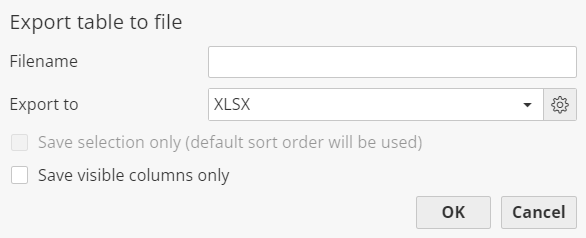
-
Select the desired export format. The options include CSV (comma-separated values file), XLS/XLSX (Microsoft Excel spreadsheet file), HTML (web page), XML, and JSON.
-
Optionally, configure additional format options. Click the
 Properties button to display the format properties window. This window contains various options specific to the format where you can configure specific properties such as how to store date values. More information about different format options can be found here
 -
Enter a name for the file. PolyAnalyst will automatically add the filename’s extension (e.g. ".csv") if you do not enter it yourself.
-
Check the Save selection only option to choose whether to only export records that are currently selected in the data grid. This option is only enabled for data grids that support record selection and only if you have one or more records selected prior to clicking the Export button in step #1. Leave this option unchecked to include all records regardless of whether records are selected.
-
If the Save visible columns only option is enabled, hidden or filtered columns are not exported.
-
Click OK to begin the export process. Upon clicking OK, PolyAnalyst closes the export window and displays a progress bar window. During the export, PolyAnalyst sequentially writes the records to the file. When the operation completes, the progress window closes.