Execution of a node
There are several ways to start node’s execution:
-
Use a double left-mouse click on the node on the flowchart.
-
Alternatively, right-click on the node on the flowchart and select Execute.
-
Alternatively, use the shortcut button (F10 by default).
-
Alternatively, use the execute button on the Quick Access toolbar.
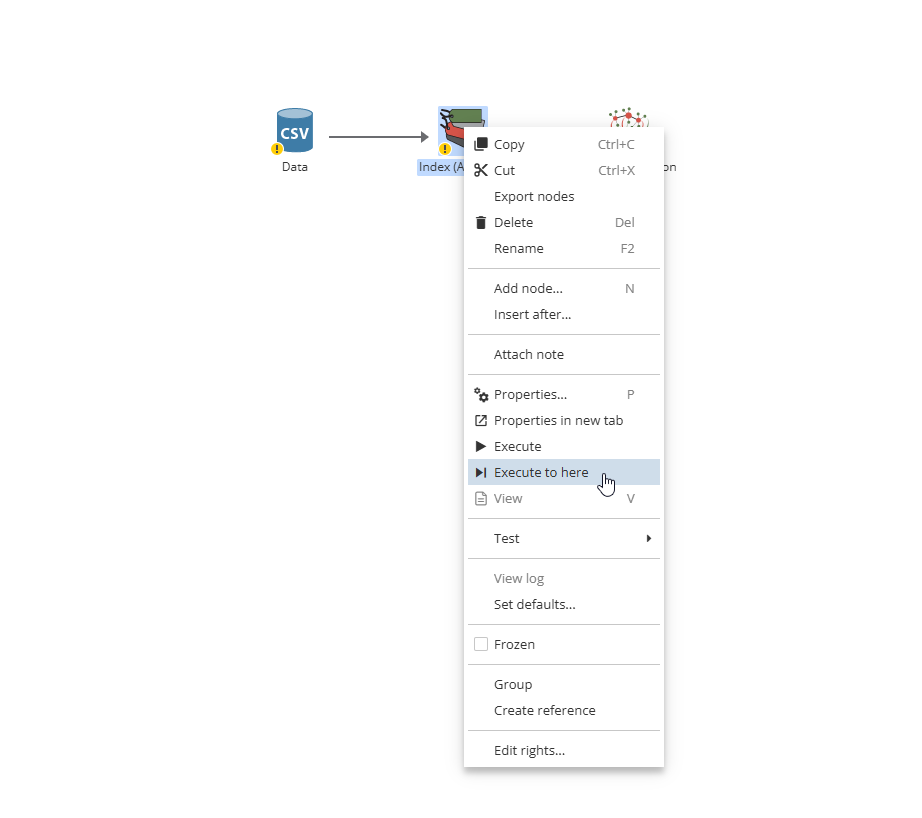
Use the Execute to here option to execute only a selected node, i.e. an execution wave goes only up to and including the specified node.
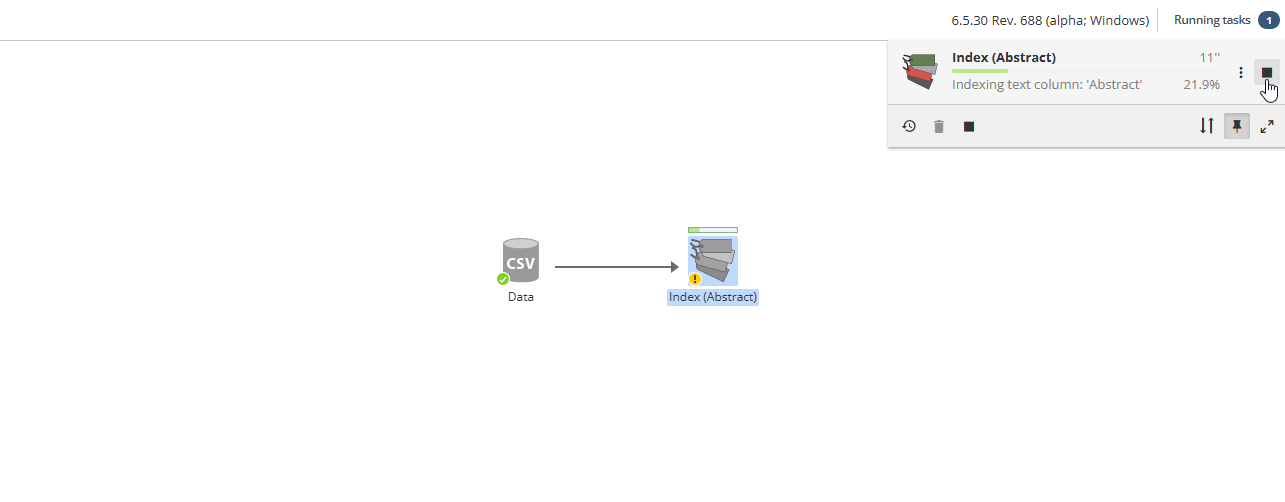
To abort the node’s execution, click the stop button in the tasks list pane.
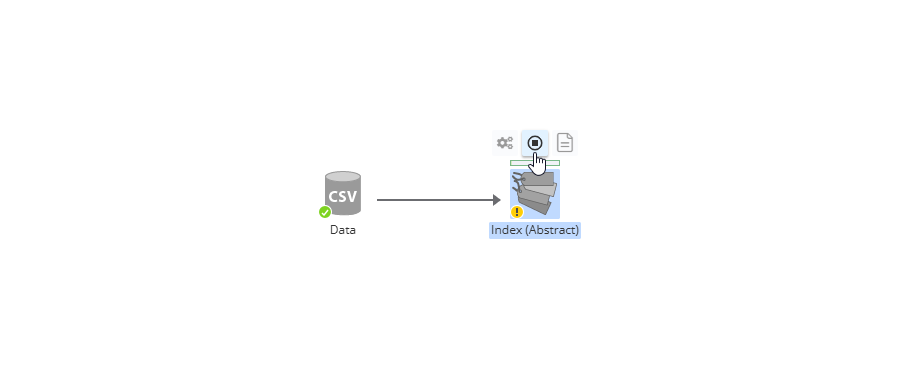
Alternatively, use the stop button on the Quick Access toolbar.
When stopping a node execution, users can right-click a node and choose the Try to stop option.
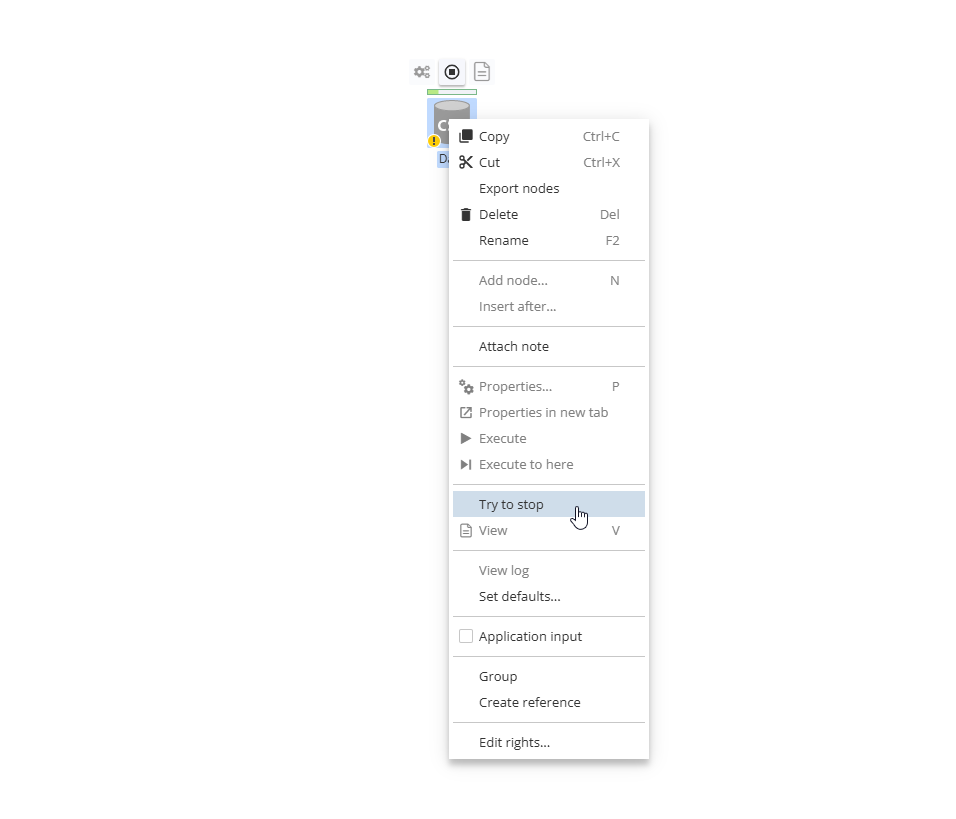
In this case the importing data will be truncated up to some row. This may be helpful when working with a big data file consisting of several thousands of rows.
To apply this option to multiple nodes, select the desired nodes and choose the Try to stop option from the context menu.
| When the Try to stop option is used with a message broker or S3, data will be downloaded into the server storage first and then parsed, i.e. data will be truncated up to the parsed row only, the rest, i.e. not parsed data will not be shown. A similar operation is performed when the Soft time out option is used. |