Configuring confirmation prompts
These settings control whether to display a prompt when performing certain actions. The settings are available in the User settings menu in the Confirmations section.
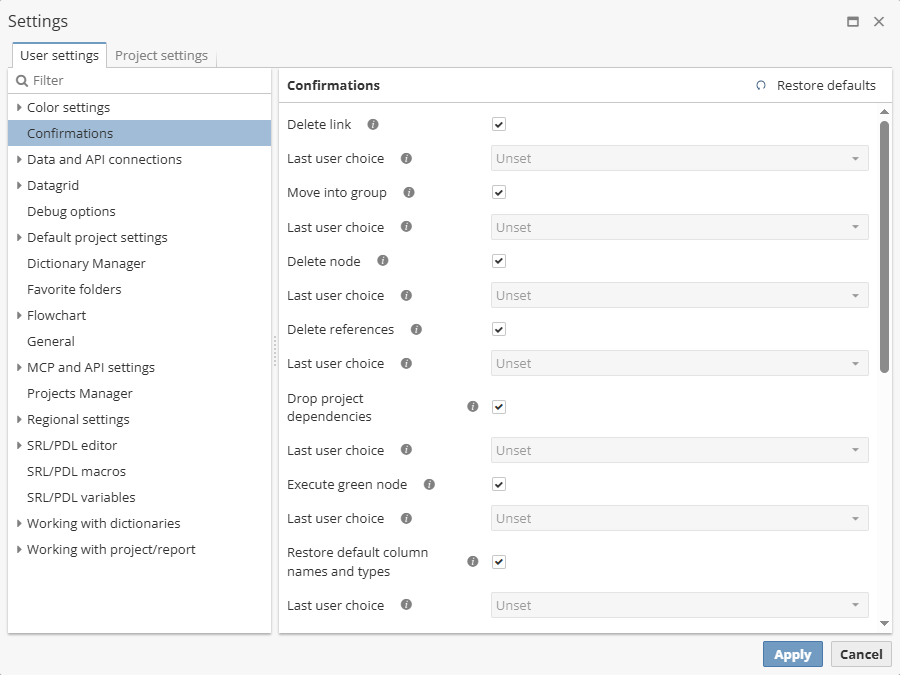
Note that each item can be checked/unchecked. In the latter case, one can set the Last user choice value, i.e. Yes and Unset.
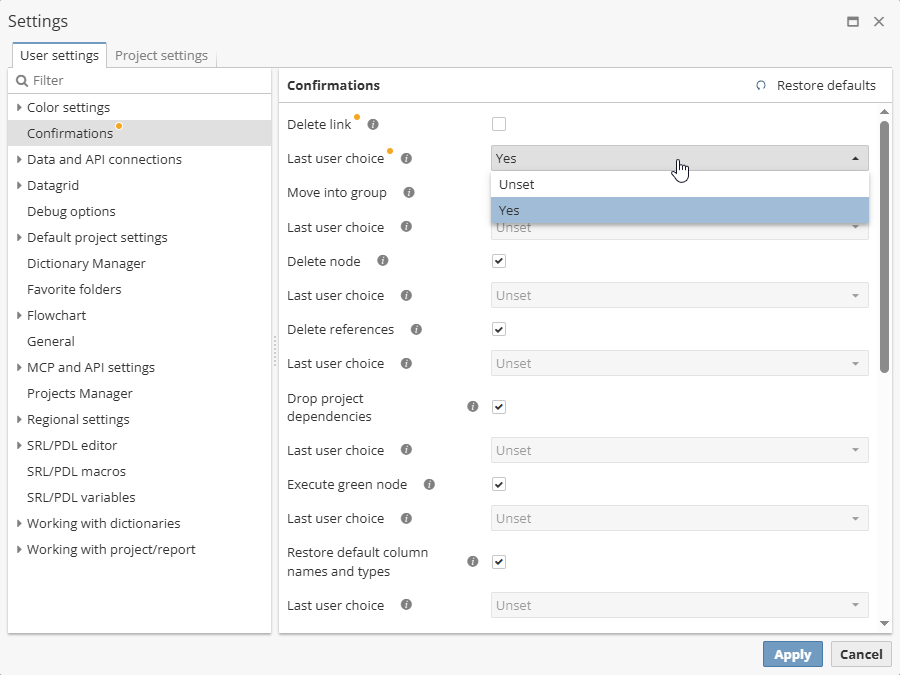
Note that if the settings item is not checked, the Yes and Unset values are equal.
There are following settings available:
-
Delete link – indicates whether to confirm the attempt to delete a connection between two nodes on the flowchart.
-
Move into group – indicates whether to move one or more nodes into a group.
-
Delete node – indicates whether to confirm deleting one or more selected nodes.
-
Delete references – indicates whether to confirm the attempt to delete a node with references.
-
Drop project dependencies – indicates whether to confirm dropping project dependencies if they were changed.
-
Execute green node – indicates whether to confirm the attempt to execute a node that has already been executed.
-
Restore default column names and types – indicates whether to confirm the attempt to restore default column names and types.
-
Save object on closing the view window – indicates whether to confirm saving a node on closing the window if it has been modified. It applies to nodes that allow for changes within the View window (e.g. the Taxonomy node).
-
Unsynchronized nodes – indicates whether to confirm the attempt to view unsynchronized nodes.
-
Freeze non-dataset node – indicates whether to warn that non-dataset nodes change their state as a result of freezing.
-
Save visibility rights on closing the dialog – indicates whether to confirm saving visibility rights on closing the window if they have been modified.
-
Execute all nodes – indicates whether to confirm execution of all nodes of the project.
-
Dataset Link – indicates whether to confirm the linking in the Dataset link node.
-
Load after auto-save – indicates whether to confirm the loading of the last auto-saved version of the project, i.e. if checked the user should confirm the loading of last save.