Viewing node results
When a node completes execution, you can view the results in a new window within the PolyAnalyst Analytical Client.
To view a node, right-click on the node’s icon on the flowchart and select the View option. If the node has not yet completed execution, then the view for the node is not enabled, and the View option in the right-click menu will appear disabled or not present.
There is more than one way to open the view of a node. For example, you can right-click on the node within the Project tree and select View. Alternatively, you can customize how PolyAnalyst responds to double clicking on a node’s icon on the flowchart, and if setup properly, you can double-click on a node to open its view.
About the results window for a node
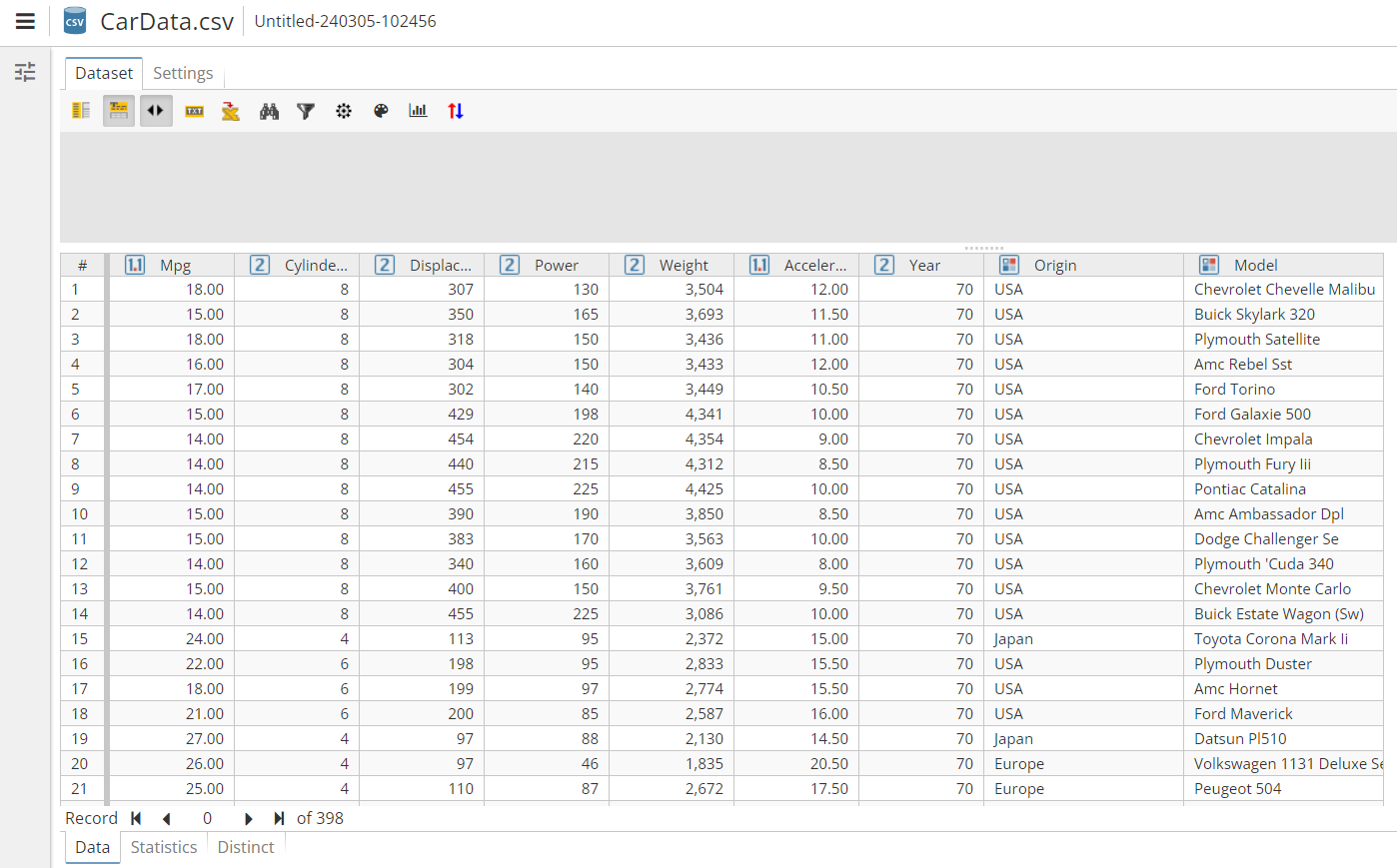
The view of a node’s results is displayed in its own window within the PolyAnalyst window. The window that appears depends on the type of results produced by the node. For example, nodes that import or change data produce datasets. Viewing such nodes will display the data that was generated by the node in a data viewing window, also known as the data grid. For example, the following image shows the view of a node that imported data. It is the smaller window with the title `CarData.csv'.
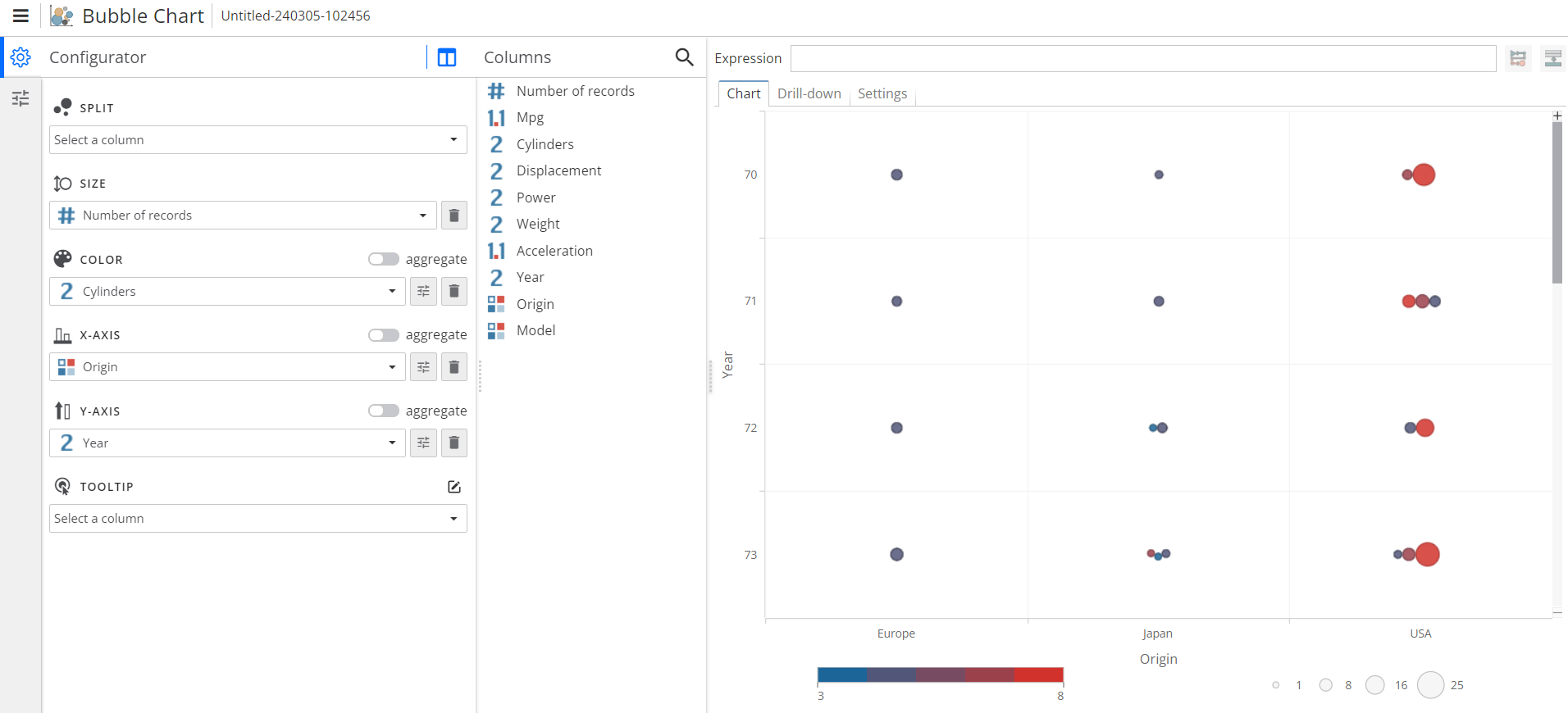
Nodes can produce other types of results in addition to datasets. For example, chart nodes produce chart windows.
View the results of the CSV Source node
Right-click on the CSV Source node we executed in the previous step and select View. PolyAnalyst opens the view of the CSV Source node as a new window. The flowchart window is still open, but the CSV Source node’s view window appears in a new tab.
You can now peruse the contents of the dataset. Details on interacting with the view of a dataset is covered in greater detail in a later section of the documentation. For this example, the objective is merely to get comfortable with the idea of opening the view of a node.
About the delay when opening the view of a node
Generally, node views should open immediately. However, there may be a significant delay when opening the view of certain nodes. This is because certain nodes require transferring a large amount of information from the server to the client. PolyAnalyst does not provide a way to measure the progress of opening the results window for a node. However, you can tell that information is loading by examining the bytes received metric in the status bar.
Certain views may appear quickly but display values like `N/A' for an indeterminate amount of time. In this case, the window has opened, but PolyAnalyst is still transferring information from PolyAnalyst Server. After some time the data will appear in the window and the `N/A' values will be replaced with data.
Multiple views
Some nodes provide multiple views. Generally, when a node can present multiple views, the default view represents a view of the item that is output from the node (which can be used as input to other nodes), whereas the other views present auxiliary information. Generally, if a node provides a second or third view, there will be additional options in the node’s right-click menu to open those other views.
For example, a common type of secondary view is the log view, which is usually accessible by selecting View log from the node’s right-click menu. Generally, the log view shows a list of textual messages that describe significant events that occurred when the node was executed. The log view is helpful to review some of the node’s internal logic in order to verify the node complied with expectations.
Close the view of the CSV Source node
Closing the window displaying the results of a node does not delete the node’s results. You can return and open the window showing the results at any time.
If you are viewing the results of a node in a window open on your computer, and then you or another user decides to re-execute the node, the results are no longer viewable, because re-executing a node generally causes the node’s results to be immediately deleted. In this event, be aware that PolyAnalyst will automatically close the window, without warning.
Auto-viewing node results
You can configure PolyAnalyst so that the node view window would open automatically on finishing the node execution. To do this, open User settings in the Settings menu and find Working with project/report options. Check the Auto-view node option (it is not active by default).