Opening and closing a project
There are several methods for opening a project:
-
Select Open project from the Startup window.
-
Select Open project from the menu in the Analytical client.
-
Select a project from the Open recent list in the menu.
-
Use the keyboard shortcut CTRL + O (for the native version of the Analytical client).
Upon using one of the above methods, the Open project window will appear.
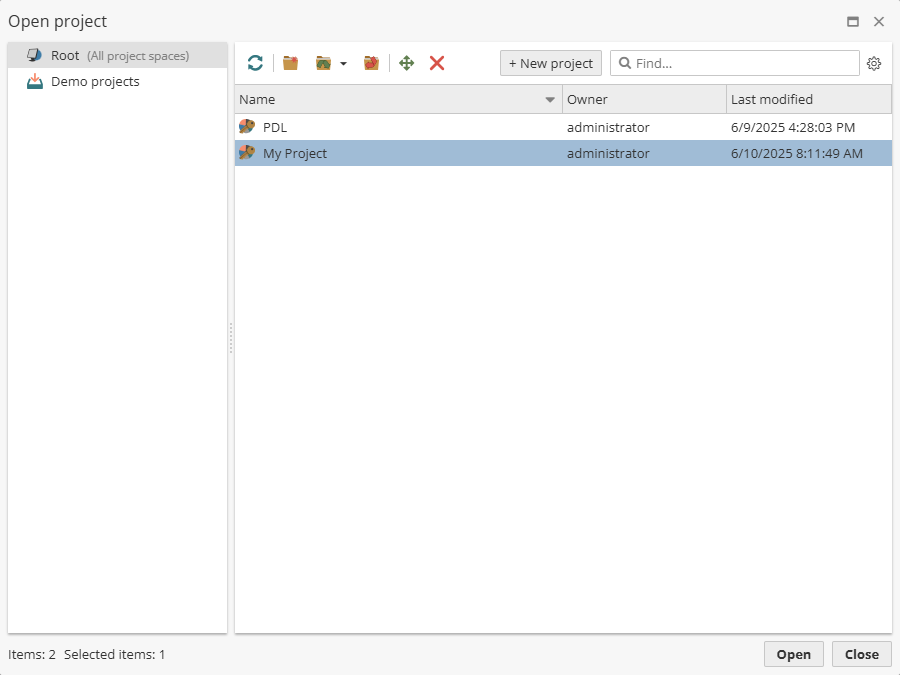
Select the project in the table of projects on the right by left clicking on the project’s name. Next, click the Open button. Alternatively, double click on the name of the project.
At this point, PolyAnalyst will open the project. You may need to wait a few moments until the project is opened. While the project is opening, PolyAnalyst must transfer the project information from the server. If the process takes more than a second, you will see a popup window displaying the progress of opening the project, and then the progress window will disappear.
|
You can only open one project at a time within the Analytical client. When creating a new project, or when opening an existing project, if another project is currently open, then PolyAnalyst will first close the currently open project. Furthermore, if the currently open project was modified, PolyAnalyst prompts you to first save the project before closing the currently open project. Once the currently open project is saved and closed, you can continue with the task of creating a new project or opening an existing project. If you want to open multiple projects at the same time, you can open additional PolyAnalyst Analytical Client windows, and then open a different project in each client window. However, the number of concurrently open Analytical client windows may be limited by your license. |
Saving a project
To save a project, select the Save option from the menu or use the keyboard shortcut CTRL + S.
When concurrent project editing is enabled, and two or more users are simultaneously working with a project, saving a project saves all changes made by each user.
Choosing to save a project in the client sends an instruction to the server to save the project. You can safely exit the client or do something else once you click Save. You do not have to wait for the save task to complete. The server will eventually save the project.
| Typically the view of projects remains unchanged after saving. But when opening a project if one of the node decides that it is not correct and resets its state, then the view of the saved project may be modified. In this case the Save button is enabled immediately after opening a project. |
Project auto-save
PolyAnalyst provides the ability to automatically save the latest version of a created or edited project, which can be convenient if the user forgets to save the project manually. To do this, enable the Confirmation auto-save option in the Confirmations section of the User settings.
Reverting changes
If there is no need to save the last changes that were made in the current project, administrators and project owners can cancel them by selecting the Rollback option from the menu. This will return the project to the last explicit save (last backup). All the changes made after this save will be lost. This option is available only if no node is currently being executed.
Saving a copy of a project
| When copying a project, PolyAnalyst copies the results of the items contained in the project flowchart, in addition to copying the layout and settings of those items. The flowchart item results include things like imported data and statistical models. Consequently, copying a project may involve copying a large amount of data. |
To save a copy of a project:
-
Open the project you wish to copy.
-
Select the Save as… option from the menu.
-
Select a location.
-
Click Save.
-
Enter a name for the copy and click OK.
-
PolyAnalyst will copy the project. During this time a window may appear displaying the progress of copying the project.
If you wish to only copy your project’s flowchart items, and not any data, then you will want to use a different method. For example, you can copy and paste items between flowcharts of different projects. Copying and pasting items only copies settings, not data.
Alternatively, you can export a project as a file, and when exporting, choose to only export item settings and not item results. This way, when you import the exported project file, you will only be importing the settings and not duplicating any data.
A warning about concurrent project access
PolyAnalyst Server can be configured to allow multiple users to simultaneously edit a project. If enabled, be aware that your changes to a project will nearly immediately affect other users' views of the project, and likewise, their changes will affect your view.
If concurrent editing is disabled in the server settings, then the user who first opens the project obtains a lock on the project, preventing anyone else from editing the project while the project is open.
You can check who is working with a project from the manage projects window: find the project, right-click on it and select Show locks.
Server settings are configured in the Administrative Tool.