Operations with macros
Using macros in expressions
To use a macro in a PDL or SRL expression, type the macro’s name as the first argument to the macro() function (see the sections on PDL macro or SRL marco functions for reference). Macro name rules are like column name rules. Make sure to only use PDL-oriented macros in PDL expressions and SRL-oriented macros in SRL expressions.
For help using custom arguments with macros, please contact Megaputer support.
Executing nodes with expressions containing macros
Each time you change a macro, PolyAnalyst does not automatically update (re-execute) any node that contains an expression that references that macro. You will need to re-execute any node referencing a macro each time you modify the macro.
It is recommended to always immediately execute affected nodes after editing your macros in order to avoid confusing situations where the node produces unexpected results but uses the prior version of a macro have you have since edited.
PDL provides the macro() and var() functions to enable you to use macros and variables, respectively, in your PDL expressions. These types of functions are commonly used to shorten your search queries.
Macros and variables can serve several purposes. Notably, using macros and variables makes it easy to reuse certain search query components that you find yourself or your team routinely using in your analyses. In addition, as PDL expressions written within the taxonomy can sometimes grow quite large, using macros and variables helps condense the expressions into a more readable format. This sometimes simplifies the management of several expressions in larger taxonomies.
Macros and variables are automatically exported with the project. Server and user macros and variables are automatically exported with the project only if the user told the system to do so in the project settings. To do this, select the Project settings from the Analytical Client settings and select the Execution setting in the option list to the left.
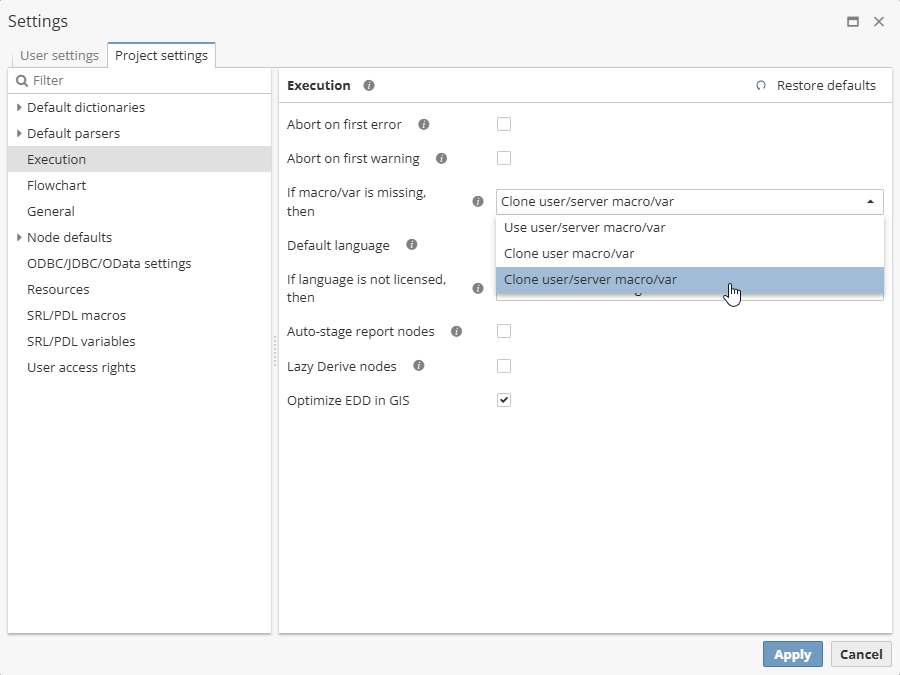
The If macros/var is missing, then setting includes several options. You can either use user/server macros and variables or clone user/server macros and variables by selecting the corresponding option.
The macro() function
The PDL macro() or SRL macro() function replaces the call with macro expansion.
The syntax for the macro() function is macro(name, arguments). The function allows using spaces in arguments, like in macro (x, y, z).
Here is how the macro() function works. Suppose we have a macro with the following properties:
Here "dog" is mapped to the first argument (x), "cat" – to the second argument (y) and the rest of the arguments replace z.
Overriding the default columns for variables and macros
Macro and variable expressions each apply to a column based on the context of how the macro or variable is used.
You can, however, change parts of a macro expression to apply to different columns within an input dataset. By default, each component of a PDL expression within a macro applies to the contextually-determined column. This is denoted by the use of an @ symbol followed by the name of the column. If the column name contains spaces or other special characters the column name must be enclosed in [brackets]. If there are no spaces or special characters then the use of brackets is optional. For example:
If the expression is not intended to apply to columns other than the contextually-determined column, then there is no need to explicitly add the @ColumnName modifier. The modifier is implicitly added. In fact, the modifier should only be added when you want to deviate from the normal behavior and apply all or a part of an expression to some column other than the default contextually-determined column.
The @Column modifier is applied distributively to the operands of an PDL expression.
There are some caveats to be aware of when specifying the columns to which parts of a PDL expression applies:
-
column references apply only to columns not already referenced;
-
second, column references do not replace columns that are already referenced.
In other words, there is some tricky behavior regarding how the column modifier that applies to the whole expression is applies to its individual parts. Specifically, there is some ambiguity regarding what happens when you have an expression like (word1@Column1)@Column2. Which column is searched? Because word1 references Column1 explicitly, Column1 is used, not Column2. In other words, in this case, Column1 takes priority over Column2. In the case of (word1)@Column2, this is equivalent to word1@Column2 after distribution, because word1 was not yet referenced (there was no explicit qualifier/modifier that specified which column to search). For example: