Using columns and rows in SRL
Using columns in SRL
To include a column value in an SRL expression, type out the name of the column in your expression. Column names can be used in an expression just like a written value.
The type of the value is determined by the type of the column.
Column names are case sensitive:
If the column name contains spaces, then enclose the name in brackets:
If the column name is a reserved word, then the column name should also be enclosed in square brackets:
As a general option, always enclose column names in square brackets:
This way it is hardly possible to make a mistake when typing a column name.
Column tagging
You can tag a column, using the [#tagname] construct. This way, you can give the column a new name and use that name instead of the original one.
To do this, open the results window of the data source node, right-click on the column and select the Configure option.
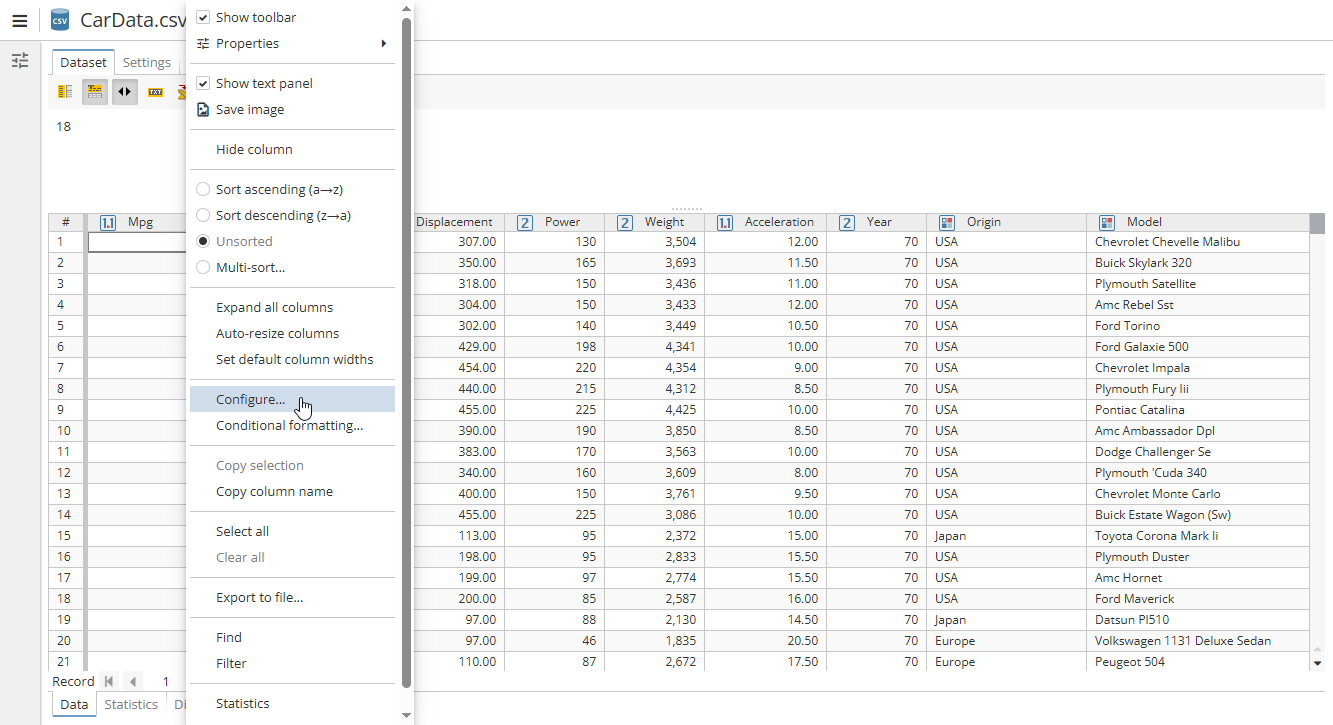
Then go to the Tags tab and specify the tag. Click Add tag to save the tag.
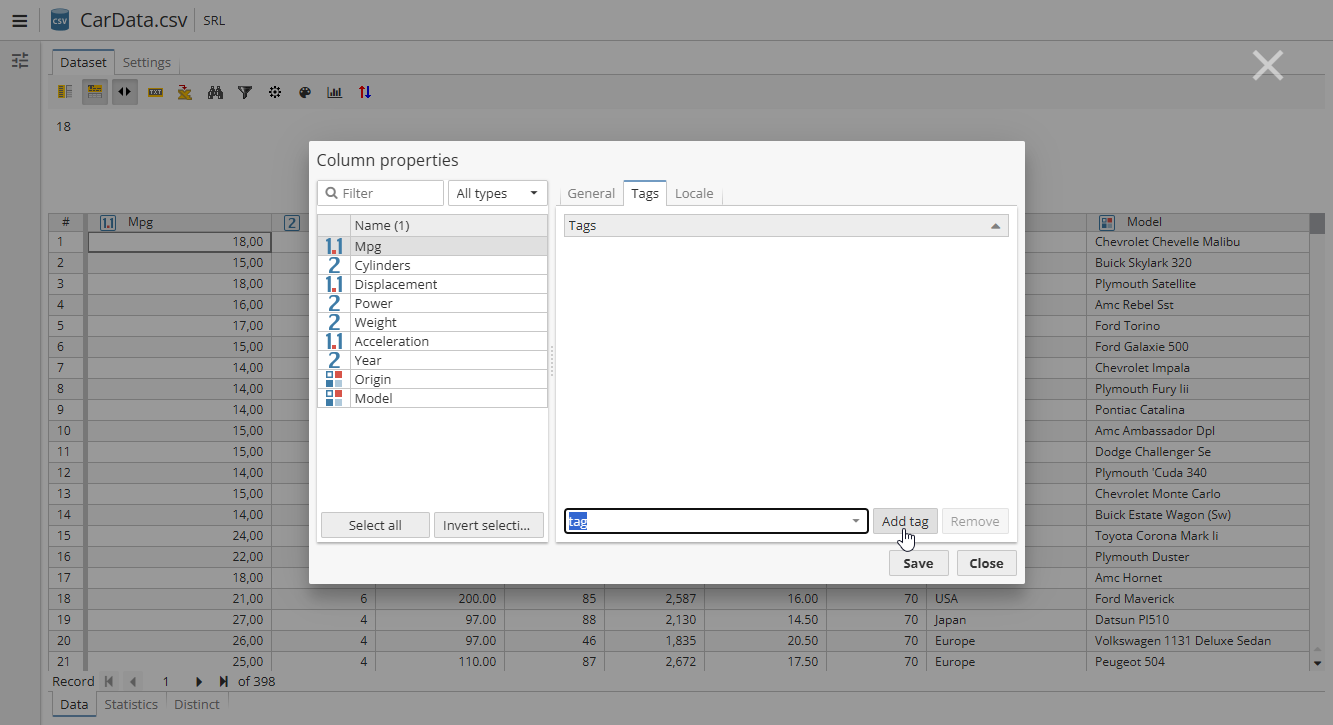
Use [#name of the tag] to access the column by its tag.
Using rows in SRL
You can address a particular row when working with columns as well. For this use {braces} with a number after a column name in an SRL expression. The number given in curly brackets is an offset value (an index value) of the rows which are returned.
Note that the first row in the column has an index of 0.