Viewing dataset statistics
PolyAnalyst can display basic statistical information about almost every dataset produced by a node or presented with the results view of a node. Statistical information is accessible by clicking on the Statistics tab when viewing a dataset. You can switch back to the dataset view at any time by clicking on the Data tab.
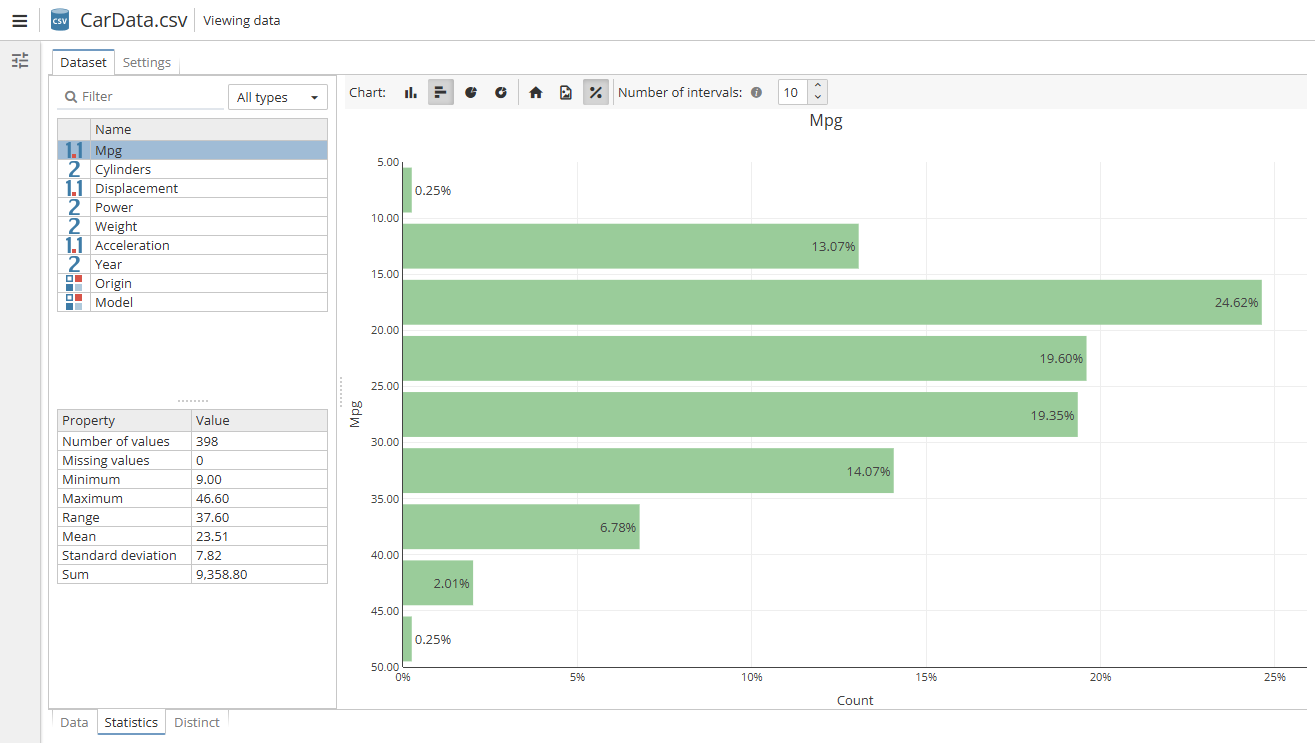
The Statistics tab is divided into 3 sections:
-
The top left section is a list of all columns in the data and is usually referred to as the column list.
-
The bottom left section displays basic statistical properties for the column that is selected in the column list.
-
The right section displays a form of a histogram showing the general distribution of values for the column that is selected in the column list.
You can interact with the Statistics tab by selecting different columns in the column list. Left click on a column in the list to select it. Upon selecting a column, the lower left properties list updates to show basic statistical information for the selected column, and the right side displays an updated chart for the selected column.
The column data type affects what statistical information is displayed in the lower-left properties list and in the graph on the right. Some column types do not have a corresponding graph. Column types such as the String data type do not have statistical properties like Mean.
The following is a basic description of some of the statistical properties displayed:
-
Number of values is a count of the number of non-missing (a.k.a. non-null, non-empty) values in the dataset for the selected column.
-
Missing values statistic is a count of the number of missing (a.k.a. null or empty) values in the dataset for the selected column.
-
Minimum is the smallest value in the data (for number and date column types only) for the selected column.
-
Maximum is the largest value in the data (for number and date column types only) for the selected column.
-
Range is the absolute difference between the minimum and maximum values in the data (for number and date column types only). For date columns, the range is displayed in the units of days, hours, minutes, and seconds.
-
Mean is the average of all values in the data (for number column types only) for the selected column.
-
Sum is the sum of all values in the data (for numerical column types only).
-
Standard deviation statistic is the standard deviation of all values in the data.
-
Median is the central value in a sorted list of all values in the data for the selected column.
-
Mode is the most frequently occurring value in the data for the selected column.
The chart displayed on the Statistics tab is only meant to provide a fast and convenient summary view of the data. The chart displayed in the Statistics tab can be customized similar to how the view of PolyAnalyst’s various chart nodes can be modified.
There are different types of charts available. Use the toolbar to change a chart type, save a chart as a PNG image, etc.
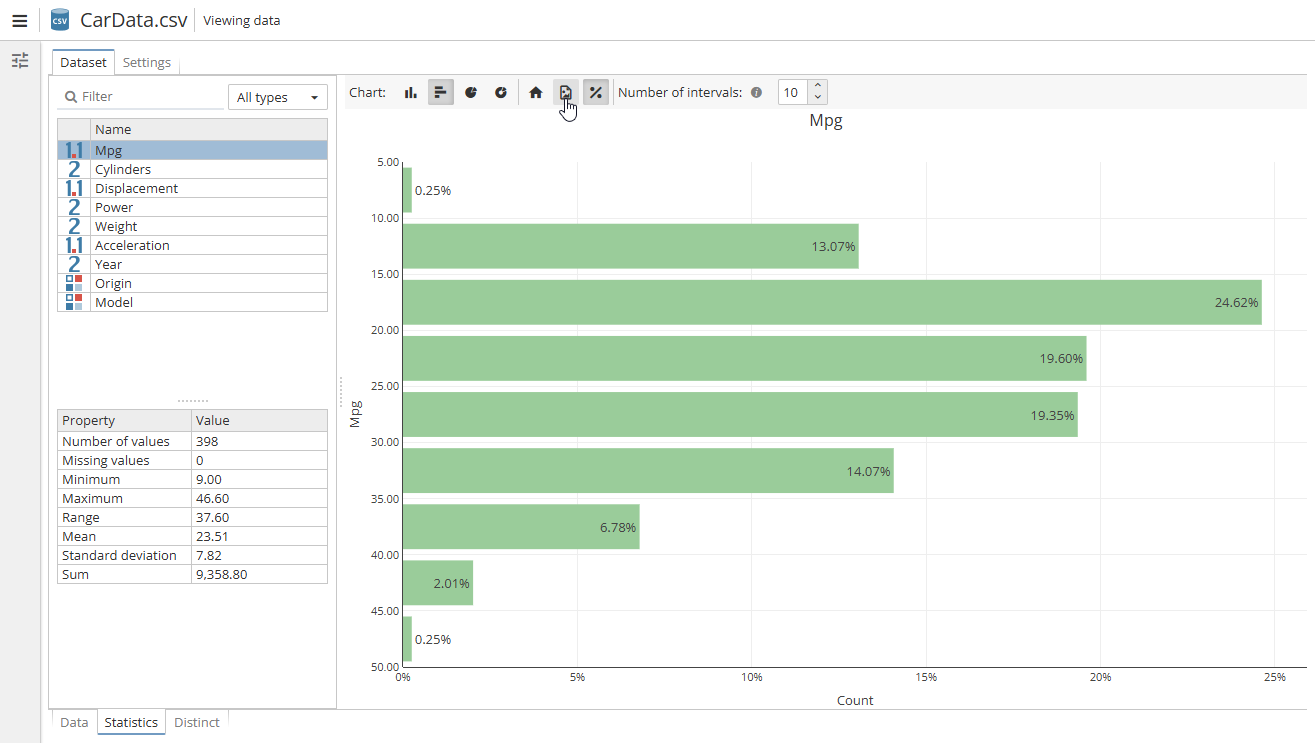
Changes to the chart’s display settings are not saved; they are lost the moment you close the view of the data. If you want to create a chart that reliably saves its display settings, use one of PolyAnalyst’s chart nodes. Chart nodes will appropriately update when the data changes. Chart nodes also process large datasets more efficiently than the chart displayed on the Statistics tab.