Sorting records when viewing data
To sort the records of a dataset:
-
Right-click the required column heading.
-
Select the required sorting order (ascending, descending or natural) from the context menu.
When the operation is complete, the order of records in the selected columns will change. The data grid will now display a small arrow in the column heading designating whether the column is sorted in descending or ascending order.
Sorting time varies depending on the data type of the column and the number of rows in the dataset. The larger the number of rows, the greater the sorting time. Certain data types like Integer or Numerical will sort quickly, whereas String column will take longer.
For scalability reasons, PolyAnalyst sorts text columns only according to the first 128 characters of the text value.
Sorting by multiple columns
You can change the sort order at any time by clicking the  Multisort button in the toolbar.
You will see a dialog where you can select the columns you want to sort:
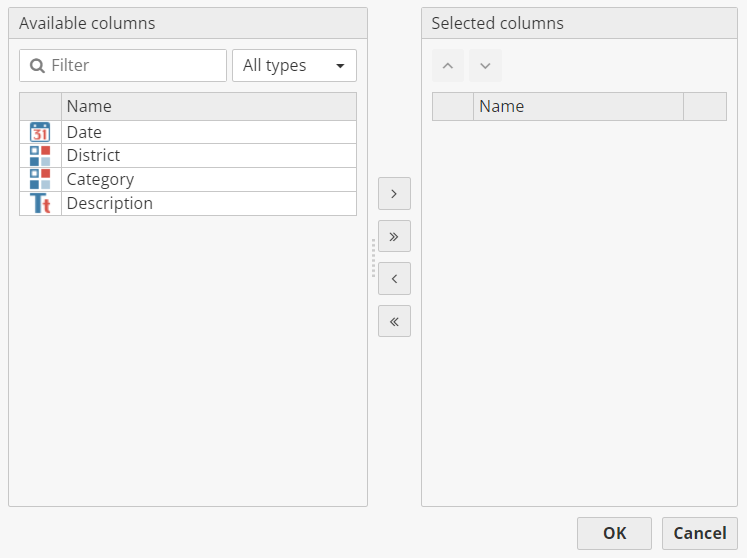
In the window, a list of all the columns from the data is displayed on the left.
To specify, which columns should be sorted, select the columns in the list on the left and click the > button to move the selected column to the list on the right.
You can select multiple columns using the CTRL or SHIFT keyboard keys (hold down CTRL while clicking to select or deselect other columns).
Upon adding a column to the list on the right, the order by which to sort the column is displayed to the right of the name of the column in the right list. An up arrow represents ascending order (e.g. 1234). A down arrow represents descending order (e.g. 4321).
The default order which is assigned to each new column you add to the right list is ascending. If you move a column out of the right list back to the left list after you have changed the sort order, and then add the column again to the right list, you may need to reconfigure the order as the order property is not saved for columns not in the right list.
To change the order for a column, double click on the corresponding up or down arrow in the right list to the right of the column name. If the arrow was pointing up, it will switch to pointing down, and vice versa.
The order of the columns in the right list represents the sorting order (e.g. sort first by column 1 then by column 2 then etc). Changing this order can alter the results entirely (e.g. sorting by column 2 first, then column 1, yields entirely different results). You can manipulate the order of columns in the right list, if you added them out of order, using the large up and down buttons located on the right side of the right list of columns.
To move a column up, select it in the list on the right and click the large up arrow button. To move a column down, select it in the list on the right and click the large down arrow button.
When you have finished configuring the dialog, click OK to perform the sort, or click Cancel to close the window without sorting. Upon clicking OK, PolyAnalyst closes the window and shortly thereafter displays a progress bar window (when working with large datasets).
This progress bar represents an estimate of the progress of sorting the data. The time required to sort the data is proportional to the number of records in the data and the number of selected columns. For smaller datasets where you are sorting by 2 or 3 columns, this operation typically completes within seconds. For larger datasets, this operation may require several minutes. When the data is sorted, the progress bar window is closed and the data viewer window is refreshed to display the new sort order.
Sorting data while viewing data versus using the Sort Rows node
The order of the data is not permanently changed when sorting from the data viewer. The order of the data in the view persists for as long as the window displaying the data is open in PolyAnalyst. The order only affects the current view. Connected nodes which access this dataset (as the output of the node being viewed) still use the original sort (or unsorted) order (e.g. the order of the data as it appears when first opening the view window).
To permanently change how data is sorted, use a Sort Rows node. The Sort Rows node is relatively more scalable and efficient. Sorting rows while viewing data is only provided as a convenience when working with smaller amounts of data (e.g. less than 1000 records). Attempting to sort millions of records from the view is a time-intensive process that has poor performance in comparison. In some cases, attempting to sort millions of records while viewing data may cause your computer to appear frozen or temporarily stop responding (due to insufficient memory). To avoid this poor performance, use the Sort Rows node.