Searching for values when viewing data
To search for a value:
-
Focus on any cell (any row) of the column you wish to search.
-
Click the
 Find button in the Data Viewer toolbar, typically located at the top of the data viewer. At the bottom of the window a tiny search window appears with a field to type in the search and buttons for performing the search.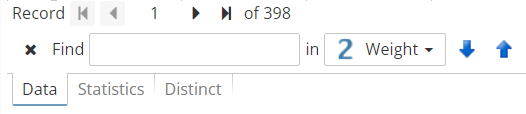
-
Type in the value you wish to search for in the text field.
-
To perform the search, click Find next (the down arrow). PolyAnalyst accesses rows sequentially from top to bottom, looking for a matching value. When a value is found, it becomes the focused cell and is scrolled into view in the data viewer automatically.
-
Click the Find next or Find previous buttons to jump to the next or the previous match. When PolyAnalyst reaches the last row, it starts over from the first row, in a cycle. If the search reaches the last row, then starts over, then reaches the row where the search started, PolyAnalyst displays the error message Text not found.
To search a different column, use the drop-down list of columns, select the required columns and then repeat step 4 above.
The search is a raw, character-by-character search of each value. No special syntax is involved. Numbers, dates, and Boolean column values are treated as sets of characters during the search, even though those columns may represent different types of values than characters.
The search tool is not scalable. The column search feature present in the data viewer is designed for fast and simple searching for smaller datasets (e.g. fewer than 10,000 records) where it will not require a long time or a lot of resources. This client-side search is a raw, character-by-character search over every single value in the data, without the use of any pre-calculated information. If you want to search large amounts of data efficiently then consider using one of PolyAnalyst’s nodes such as the Filter Rows node.
PolyAnalyst only stores the first 128 characters of text values within the data grid. When you search a text column, only the first 128 characters are examined.
If you want to search full text values, try the Search Query node instead. Note that you must know PDL to be able to use the node.