Viewing the full contents of a value when viewing data
The text pane shows the full contents of the currently focused cell of data.
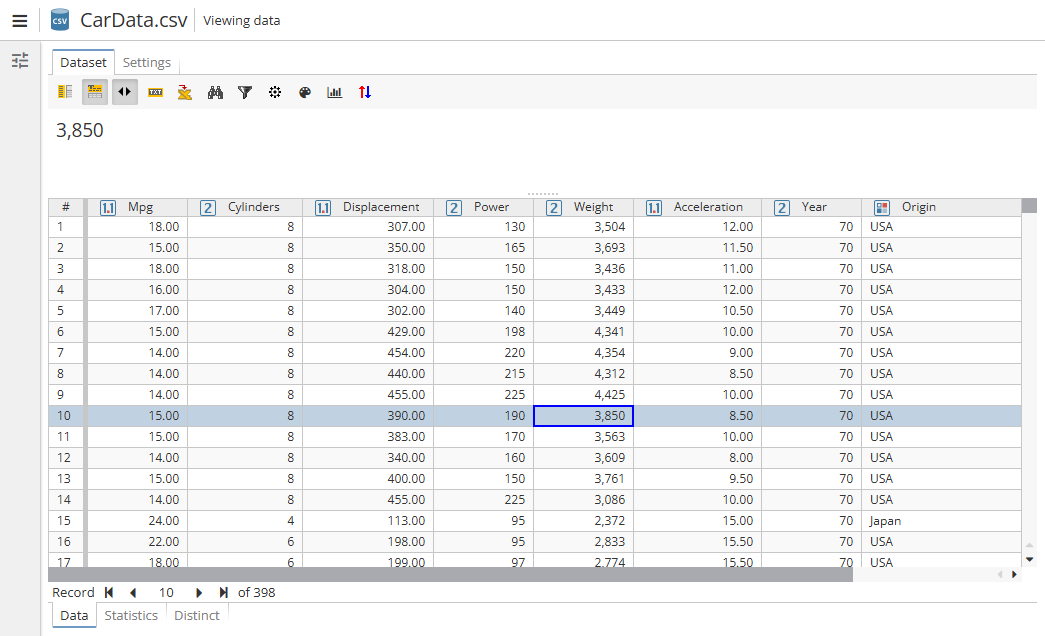
The screenshot above displays the text pane (the large white rectangle) which contains the value 3,850, which is the value of the focused cell in the data (see the small blue rectangle).
Showing and hiding the text pane
The text pane can be hidden. Sometimes, when first opening the data viewer, the text pane is initially hidden, so you will need to first make it visible by clicking the Toggle text panel button in the toolbar.
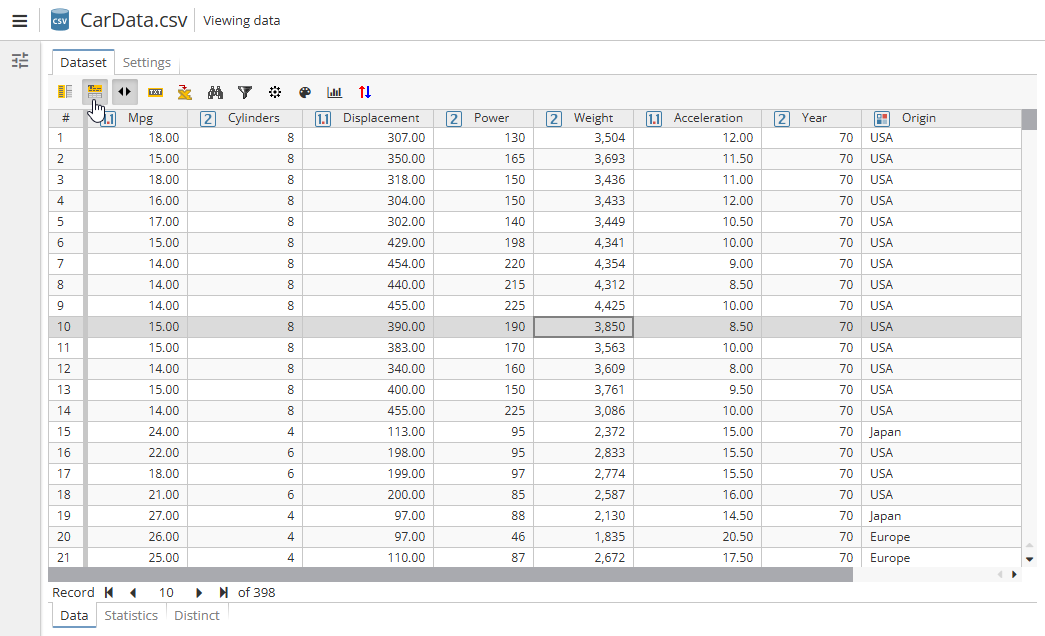
If the pane is visible, then clicking the button hides it.
| The grid shows shortened or truncated values because the full values are not initially loaded into a computer’s memory. |
The text pane can only be used for viewing the text of a selected cell. Users may choose to display the original formatting of the text. This can be done with the help of the Use initial formatting button in the toolbar.
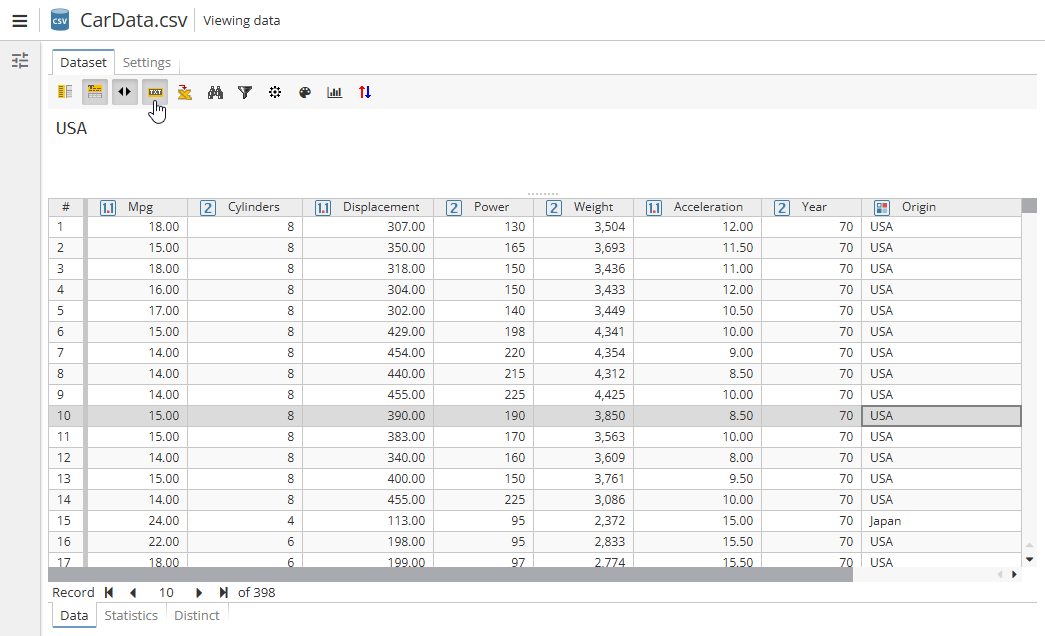
If the option is enabled, for example, the text pane will display all the whitespaces and paragraphs of the source text. The option is switched off by default.
| Upon selecting a cell (or switching the data grid’s focused cell from one cell to another), the client sends a request to the server for the full contents of the value and then waits for a response. In the case of very large values, or when the server is busy, it may take several seconds to update the value. |
When working with nodes that deal with the analysis of text, you may see that various words appear highlighted in the text pane. The text pane will automatically scroll and correctly display line breaks when dealing with large text.
Clicking links when viewing data
Certain values in the data grid may appear as clickable hyperlinks, similar to how a link appears when using a web browser. There are several nodes that can generate columns in a dataset that contain hyperlinks.
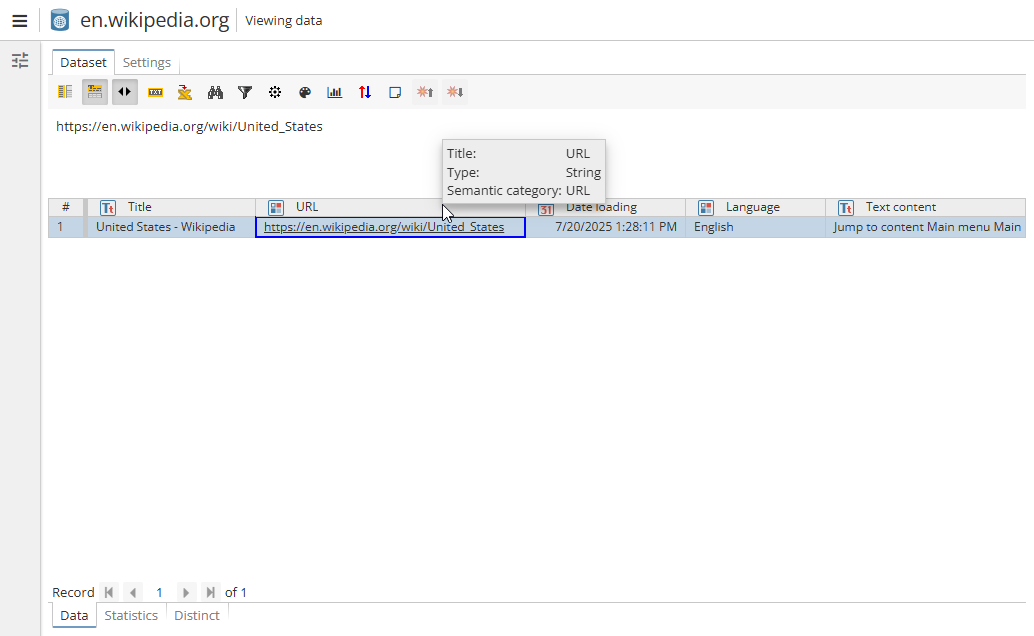
For example, nodes that import files, such as the Files node, the FTP Source node, Internet Source or the Lotus Source node, generate a Path column that contains the full address of the file that is stored on the local file system. The Path column will contain hyperlinked values, that when clicked, attempt to open the referenced file or URL.
Column tooltips
To see a column tooltip, hover a mouse over a column.
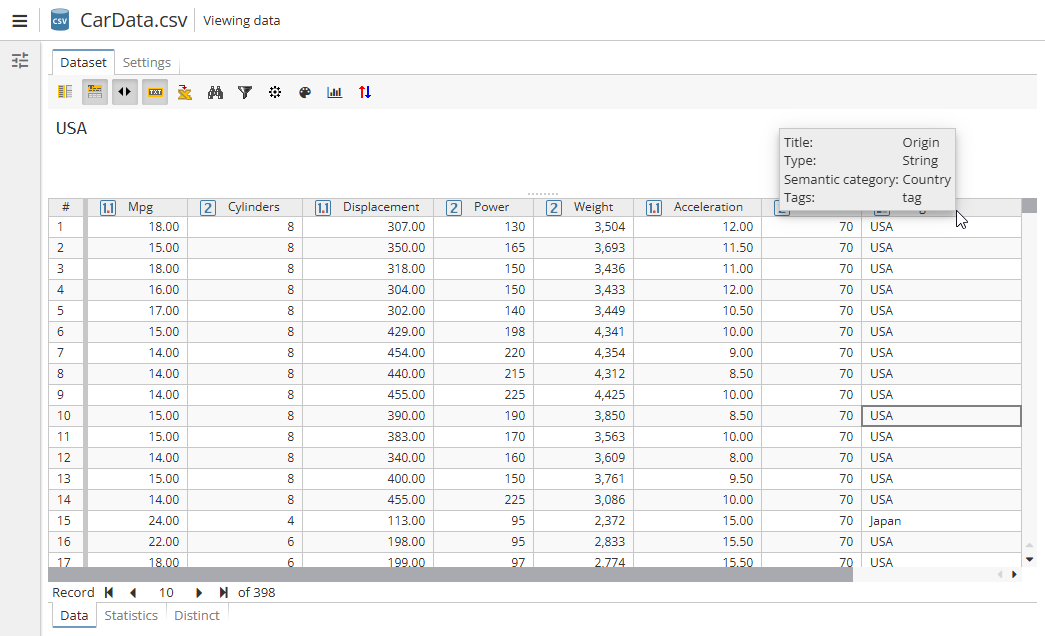
There are following values which can be shown:
Note that the Tags and Semantic category values are shown only when they are present.
Zooming in and out in the text pane
You can zoom in and out of the text pane in PolyAnalyst’s standard data grid by holding down the CTRL key and scrolling with the mouse wheel. A small scale indicator will appear in the upper right corner of the text pane.
To reset zoom to the default state, you can either use the shortcut "CTRL + 0" or the Reset to default button below the scale indicator.