Creating an application
An application is a stand-alone PolyAnalyst 6.5 project, i.e a script which can be executed any time with new input data. An application is created in via Application Builder.
| Before creating an application, make sure that the Application Builder service is added in the Administrative Tool. See here for more information. |
Application Builder (or AB) is a third-party service of the PolyAnalyst system designed to simplify your work with PolyAnalyst. The current manual does not provide full information about all aspects of working with the Application Builder. Please, contact the Megaputer support team in case any questions arise as well as to obtain the Application Builder User Manual.
In this chapter we will discuss how to create and configure a new application, i.e.
How to create an application
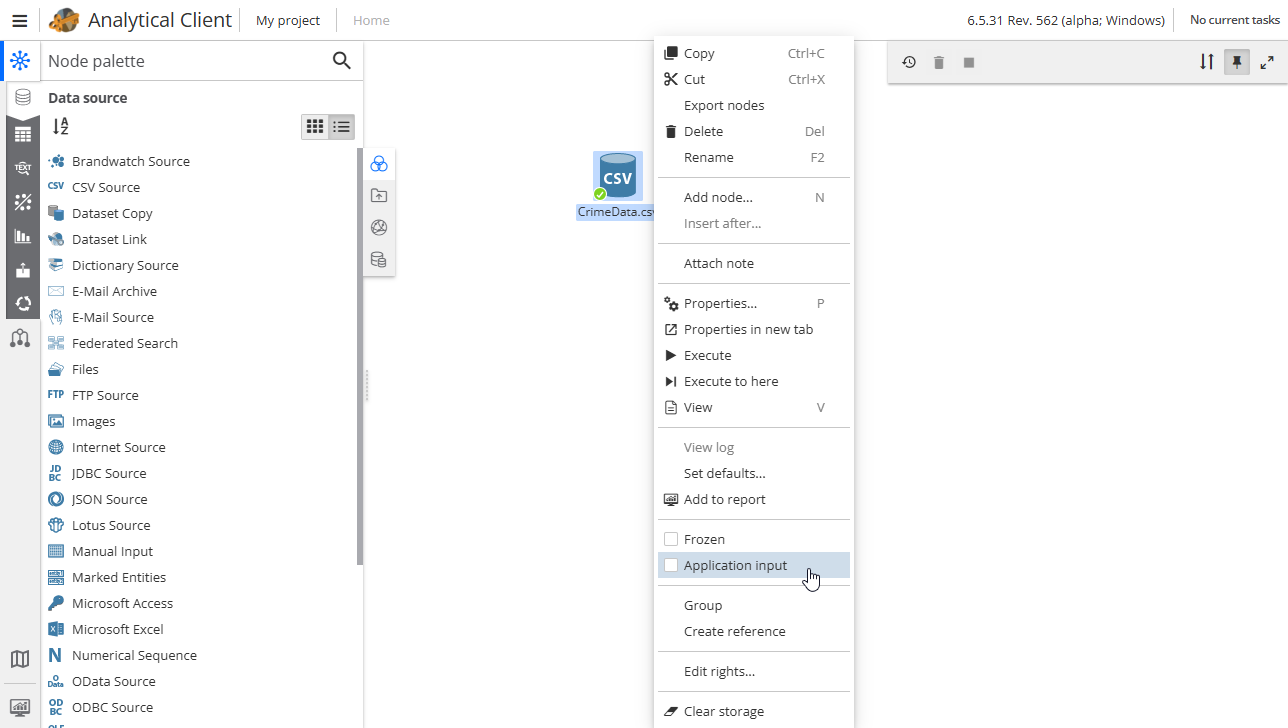
Before creating an application it is needed to specify an input node. Such a node will stand for the input interface when the application is created.
To specify an input node, right-click a node, then choose the appropriate option:
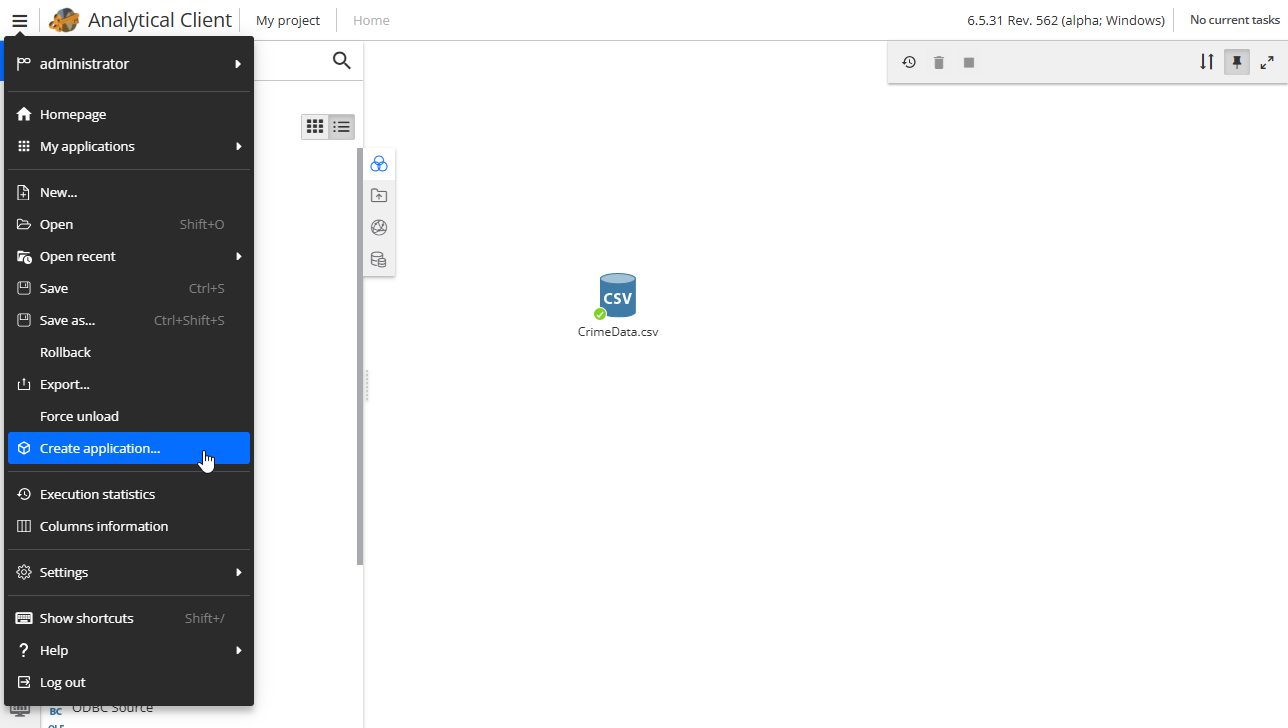
To create an application, click the Menu button and choose the Create application option.
Note that an output node can be specified as well but it is not required. A web report is also considered as an output.
Configuring an application
In the window that opens, choose the Application Builder server.
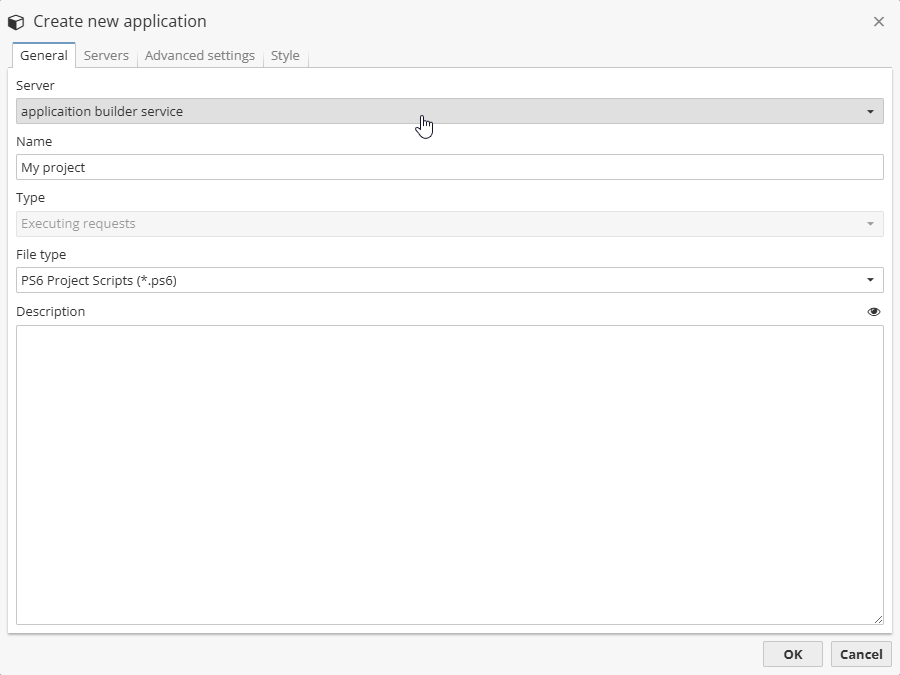
Note that the list of Application Builder servers is configured in the Administrative Tool in the Services section.
Then give a name for your application and choose its type, i.e. the Executing requests one.
| This is a regular Application Builder application, i.e. a project created in PolyAnalyst for which input were specified. Other types of applications are described in the Application Builder manual. |
In the fields below you can also choose a file format (.ps6 or .pa6) and its description.
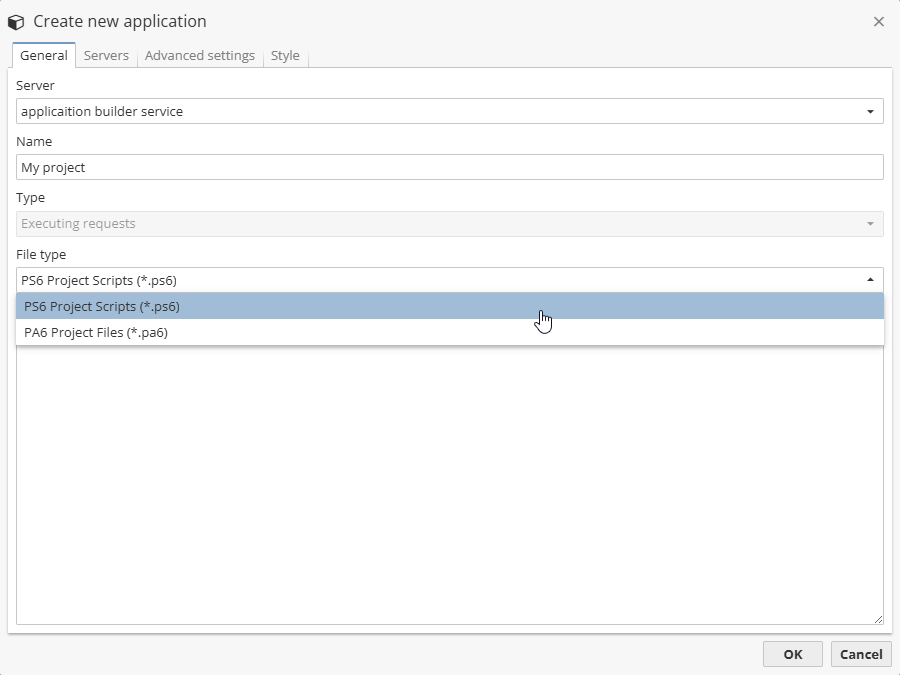
More on the project formats is given here.
The Description field is used to set an application description and not required.
Choosing a server
In the Servers tab, select the server on which you want to export your project.
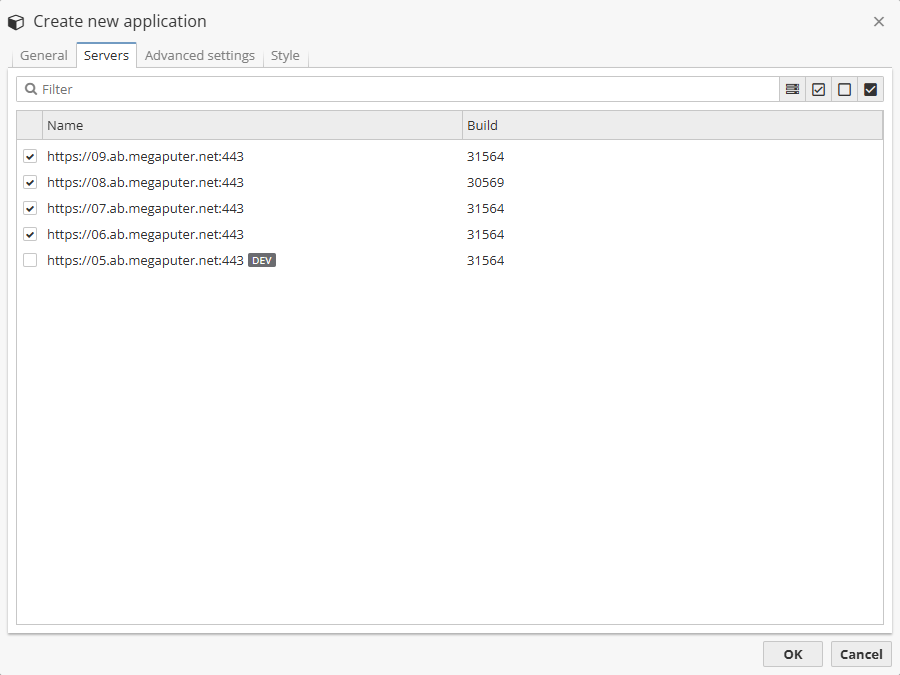
You can select several servers for your application. These are other PolyAnalyst 6.5 servers which are configured separately.
Being an effective tool of configuring a cluster of PolyAnalyst servers, Application Builder will automatically choose an appropriate PolyAnalyst server to export an application (i.e. from the list of ticked servers).
| In terms of Application Builder a project and application are considered as synonyms, i.e. an exported application will be available on other PolyAnalyst servers as a common PolyAnalyst project. |
Additional settings of the application
Go to the Advanced settings tab to set the application configuration.
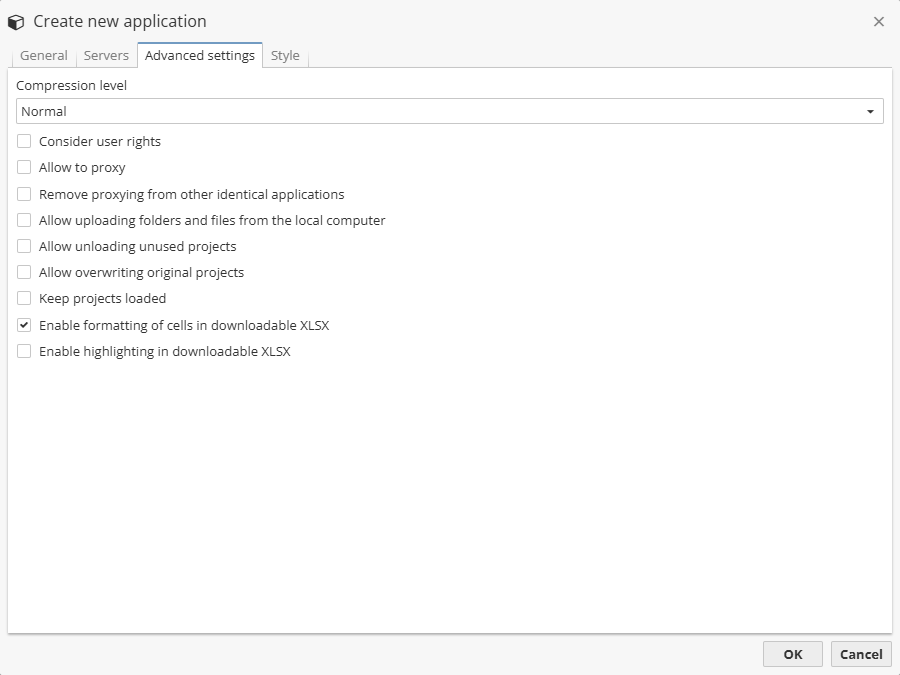
The first option to configure is the Compression level parameter, i.e. a value of a project compression when such a project is being exported from the PolyAnalyst server.
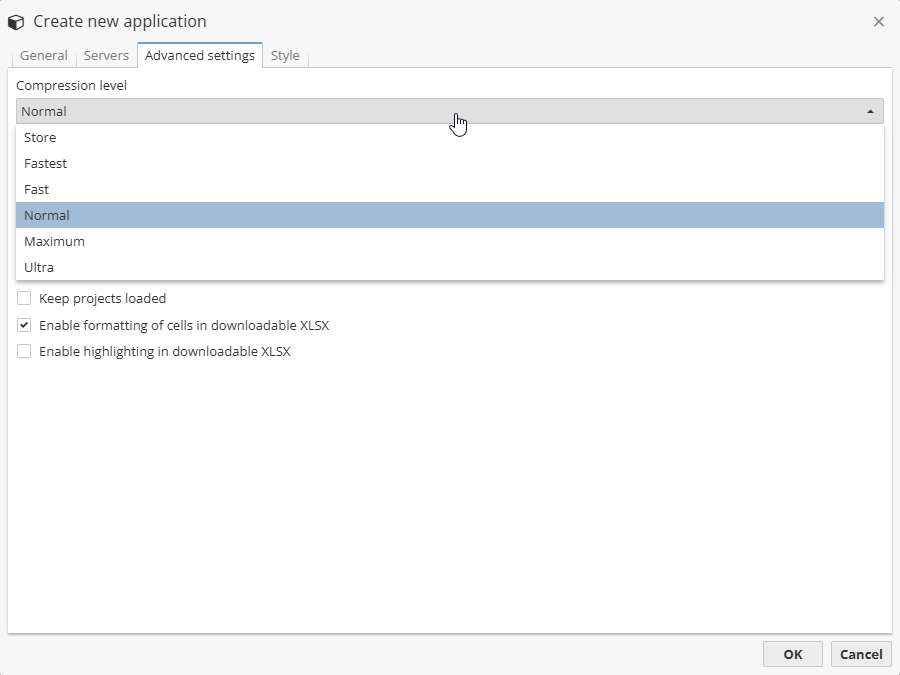
There are following levels of compression, i.e.
-
Store – no compression is used, a project is being exported as it is.
-
Fastest – the fastest level of compression, i.e. a project is being compressed at a minimum level.
-
Fast – a fast level of compression, i.e. a project is compressed for a shorter period of time than when using the default value though a project space is bigger.
-
Normal – a default compression level.
-
Maximum – a maximum level of compression, i.e. a project is compressed longer than when using the default value though a project space is lower.
-
Ultra – an ultra level of compression, i.e. a project will be compressed for a longer period of time but the minimum level of disk space will be used.
The list of options is given below, i.e.
-
Consider user rights – allows you to sync users and user groups of the original server (i.e. the server on which the project was created) and a target server (i.e. a server on which an application is being added).
-
Allow to proxy – enables application proxying, i.e. all requests to and from such an application are done via the an Nginx web server. The Nginx documentation can be found on the official web site.
-
Remove proxying from other identical applications – allows you to leave proxying only on one application. The option in hand is only true for the Unsafe cloning a project application type, i.e. such applications have the same Project ID. More on the applications types see the Application Builder User Manual.
-
Allow uploading folders and files from the local computer – allows you to select folders and files which are given on the same machine as the Application Builder server is.
-
Allow unloading unused projects – used to unload projects from a PolyAnalyst server, i.e. unload them from the computer memory. It should be borne in mind that a project is unloaded only if such a project is not being proxied, i.e. the Allow to proxy option is not checked.
-
Allow overwriting original projects – used to import a project to overwrite the existing one with the same Project ID.
-
Keep projects loaded – used to keep projects loaded into the memory. It may be useful you need to open the project to see its results without waiting for the project to load.
-
Enable formatting of cells in downloadable XLSX – allows to enable cells formatting for XLSX files before executing an application and downloading its results in the XLSX format.
-
Enable highlighting in downloadable XLSX – allows to enable text highlighting of the data in the output document (e.g. if you export the results of the Taxonomy node, you may have some highlighted text data).
Choosing a CSS style
The Style tab allows you to set a user style for the application page.
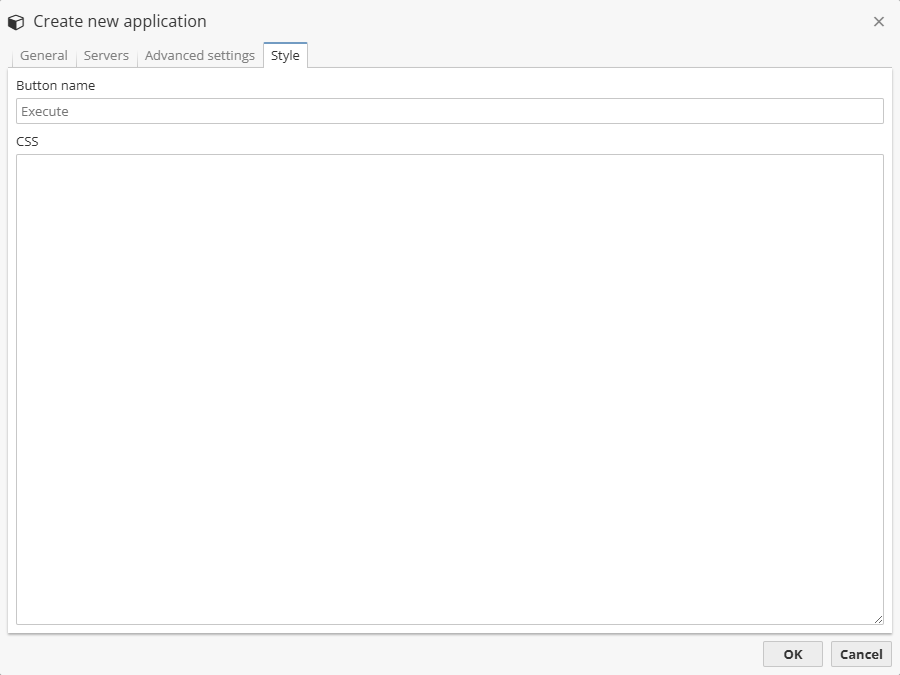
Note that an application page can be given as a separate link, e.g. to insert into a web page.
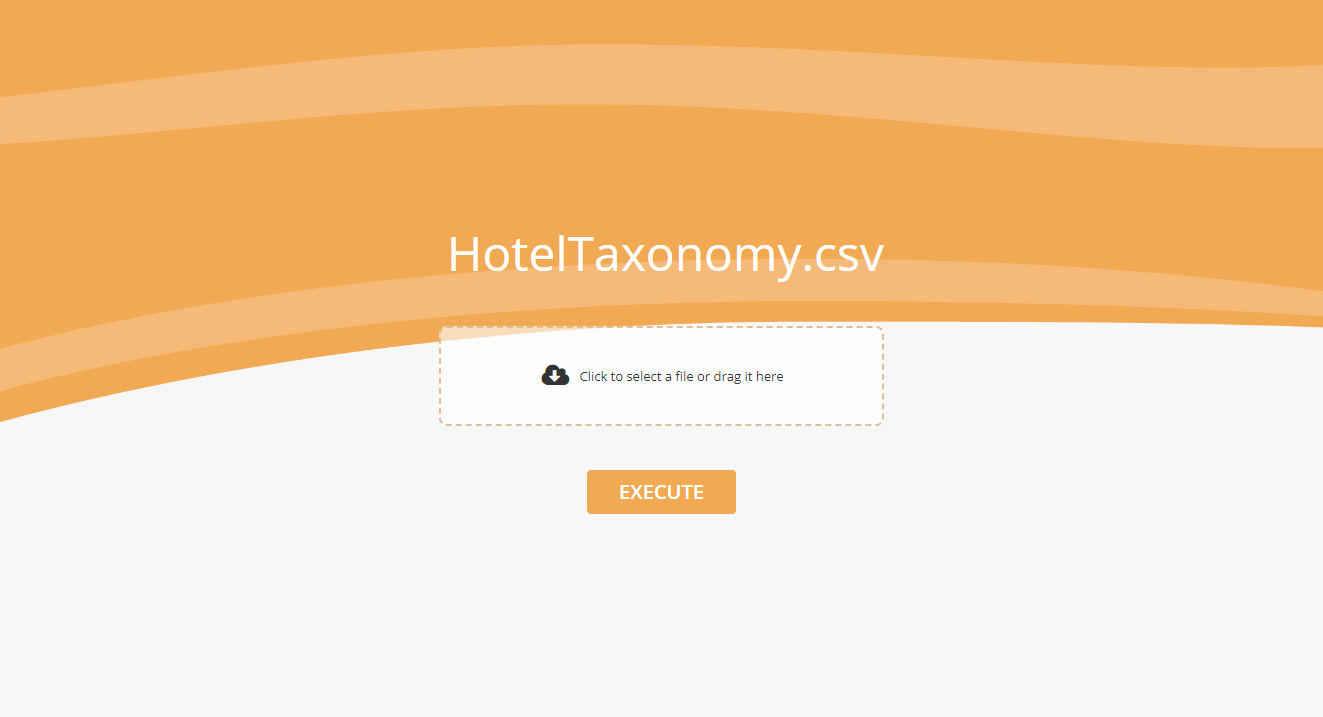
The example of the CSS used in the screenshot above is as follows:
body {
  display: flex;
  background-image: url("data:image/svg+xml;base64,PHN2ZyB3aWR0aD0iMjYwMCIgaGVpZ2h0PSIxMTUyIiB4bWxucz0iaHR0cDovL3d3dy53My5vcmcvMjAwMC9zdmciPgogIDxwYXRoIGQ9Ik0yNjAwIDBIMHY2NzhjNDgxLTEyNyA5ODAtMTY5IDE0NzYtMTYwIDM3NiAwIDc1MSAwIDExMjUgNDIiIGZpbGw9IiNmNGFjNTQiIGZpbGwtcnVsZT0iZXZlbm9kZCIgc3R5bGU9ImRpc3BsYXk6aW5saW5lIi8+CiAgPHBhdGggZD0iTTI1ODAgOWMtNjAgMjYtMTMwIDQ4LTIwNCA2NC0xMjggMjctMjgzIDM5LTQ3NCAzNS0xMTItMi0xNjMtNC0zOTQtMTctMjQ5LTE0LTMyNC0xNy00NjUtMTktMTcxLTMtMzI1IDQtNTMyIDI1YTEzMzgxIDEzMzgxIDAgMCAwLTQ1NyA1M2wtNDUgNS05IDF2NzZsMTktMmM2OC00IDEzOS0xMCAyOTUtMjQgMTgyLTE3IDI1My0yMyAzNDQtMjkgMTA3LTcgMTc4LTkgMjgwLTkgMTc1IDAgMzAyIDcgNjEzIDM2IDI0OCAyMiAzMjUgMjggNDQzIDMyIDYyIDMgMTY1IDIgMjIyLTIgMTQ2LTkgMjY0LTM1IDM2OC04MGwxNi03VjBsLTIwIDlNMTE2OCA0MTdjLTQzMSA4LTg0NSA1OC0xMTQ0IDEzN2wtMjQgN3Y2N2wyNi02YzIwOS01NiA0NzUtOTcgNzYwLTExOWE2NzM2IDY3MzYgMCAwIDEgNzIwLTE4IDc4MzcgNzgzNyAwIDAgMSAxMDgyIDczbC04MS0yMWMtMjgxLTY2LTYyMy0xMDYtOTk4LTExOC05NS0zLTI0NC00LTM0MS0yIiBmaWxsPSIjZjRiYjdiIiBmaWxsLXJ1bGU9ImV2ZW5vZGQiIHN0eWxlPSJkaXNwbGF5OmlubGluZSIvPgo8L3N2Zz4K");
  background-position: center left;
  background-repeat: no-repeat;
  background-size: cover;
}

#content {
  display: flex;
  flex-direction: column;
  margin: auto;
  max-width: 1024px;
  height: auto;
  background-color: transparent;
}

.app__description,
.app__description-title,
.input-data__title,
.input-data__item svg {
  display: none;
}

.app__execute {
  align-self: center;
  font-size: 20px;
  font-weight: 600;
  background-color: #F1A952;
  border: 0;
  border-radius: 4px;
  padding: 8px 32px;
  text-transform: uppercase;
  margin-top: 28px;
}

.app__execute:hover {
  background-color: #e3810b;
}

.input-data__item-title {
  font-size: 48px;
  color: white;
  margin-bottom: 24px;
  line-height: 1.4;
}

.input-data__item {
  border: 0;
  padding: 0;
}

.input-data__item > div:first-child {
  justify-content: center;
}

.fileinput {
  background-color: rgb(255 255 255 / 60%);
  justify-content: center;
  height: 100px;
  border: 2px dashed #ddbf9a;
  border-radius: 8px;
  padding: 12px;
}

.fileinput:hover {
  background-color: rgb(255 255 255 / 70%);
}